Apple iPad - Use the Control Center
Here's how to change device settings on your iPad using the control center.
Airplane Mode
- From the Home or Lock screen on your Apple® iPad®, swipe downward from the upper-right corner to access the control center.
- Tap theAirplane Mode iconto turn on or off.Turned on when the icon is highlighted.

Cellular Data
- From the Home or Lock screen on your Apple iPad, swipe downward from the upper-right corner to access the control center.
- Tap theCellular Data iconto turn on or off.Turned on when the icon is highlighted.

Wi-Fi
- From the Home or Lock screen on your Apple iPad, swipe downward from the upper-right corner to access the control center.
- Tap theWi-Fi iconto turn on or off.Turned on when the icon is highlighted.

Bluetooth
- From the Home or Lock screen on your Apple iPad, swipe downward from the upper-right corner to access the control center.
- Tap theBlutetooth iconto turn on or off.Turned on when the icon is highlighted.

Music
- From the Home or Lock screen on your Apple iPad, swipe downward from the upper-right corner to access the control center.
- Use the arrow controls to play, repeat, and shuffle music files.

Portrait Orientation Lock
- From the Home or Lock screen on your Apple iPad, swipe downward from the upper-right corner to access the control center.
- Tap thePortrait Orientation Lock iconto turn on or off.Turned on when the icon is highlighted.

Focus
- From the Home or Lock screen on your Apple iPad, swipe downward from the upper-right corner to access the control center.
- Tap theFocus iconthen select from the following options to enable / edit:Turned on when the icon is highlighted.
- Do Not Distrub
- Personal
- Work

Screen Mirroring
- From the Home or Lock screen on your Apple iPad, swipe downward from the upper-right corner to access the control center.
- Screen MirroringScreen Mirroringto display your iPhone screen on an Apple TV.

Brightness
- From the Home or Lock screen on your Apple iPad, swipe downward from the upper-right corner to access the control center.
- Adjust the brightness level as desired.

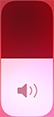
Volume
- From the Home or Lock screen on your Apple iPad, swipe downward from the upper-right corner to access the control center.
- Adjust the volume level as desired.
Flashlight
- From the Home or Lock screen on your Apple iPad, swipe downward from the upper-right corner to access the control center.
- Tap theFlashlight iconto turn on or off.Turned on when the icon is highlighted.

Timer
- From the Home or Lock screen on your Apple iPad, swipe downward from the upper-right corner to access the control center.
- Tap theTimer icon.TapStartto start the timer andPauseto pause the timer.

Calculator
- From the Home or Lock screen on your Apple iPad, swipe downward from the upper-right corner to access the control center.
- Tap theCalculator icon.

Camera
- From the Home or Lock screen on your Apple iPad, swipe downward from the upper-right corner to access the control center.
- Tap theCamera icon.For assistance with using the camera, refer to Common Camera Settings.
