Software Upgrade Assistant (Samsung) - Software Update
Here's how to update the software on your Samsung device using the Software Upgrade Assistant (SUA).
This helps you update the software on your Samsung device using your computer / PC or Mac, in the event an Over-the-Air (OTA) software update fails. This is for devices released after November 2014 only.
- Ensure the wireless device is powered on then connect it to a compatible computer using the supplied USB cable.
- The most recent software version becomes available on the SUA / SRA tool within a week of a new software update. During this time, the SUA / SRA is unavailable for usage.
The software update process may take up to 30-90 minutes. Don't disconnect the device from the computer during the repair process. The Windows® and Mac® process is virtually the same; however, there may be some slight variations.
Automatic Launch
- A pop up is presented on the taskbar informing that new software is available.The software update downloads automatically.
- When the download is complete, clickUpgrade now.If the update fails to install, please refer to the Software Repair Assistant for further assistance.
Manual Launch
Ensure the Software Upgrade Assistant (SUA) software is installed. Refer to Initial Setup - Software Upgrade Assistant for assistance.
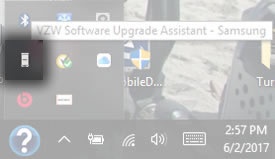
- From the Windows or Mac desktop, tap or click theUtility Launcher icon / Launch Assistant
(lower-right taskbar near the time display).
For Windows, the Utility Launcher icon is located on the desktop, not the screen with tiles. If tiles are present, click on theWindows start button(located in the bottom-left) to show the Windows desktop. - Click theSoftware Upgrade Assistant launcher icon.
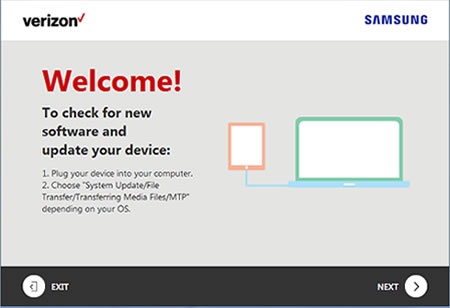
- When the "Welcome!" screen appears, if you haven't already, plug your device into the laptop/computer and tap or clickNEXT.
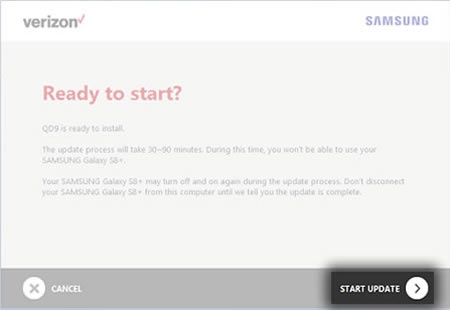
- From the "Ready to start?" screen, tap or clickSTART UPDATE(lower-right).Updating your device can take 30-90 minutes.
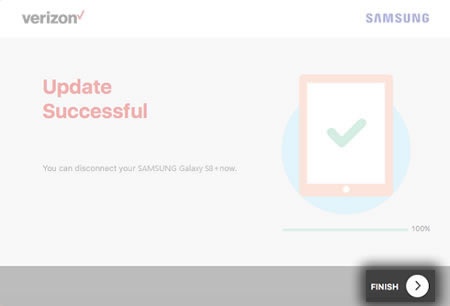
- When the software upgrade process has completed, clickFinish(lower-right).If the update fails to install, refer to the Software Repair Assistant for further assistance.