Apple iPad - Turn Do Not Disturb On / Off
If your iPad isn't receiving alerts for texts and email, here's how to check Do Not Disturb settings.
iPadOS 15 and later
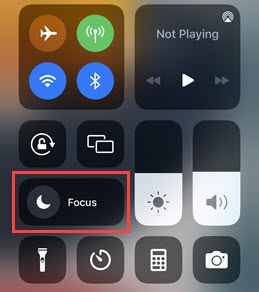
- Access the Control Center by swiping downward from the upper-right corner of the Home or Lock screen.
- TapFocus.The Contol Center screen may vary slightly depending on the device model.
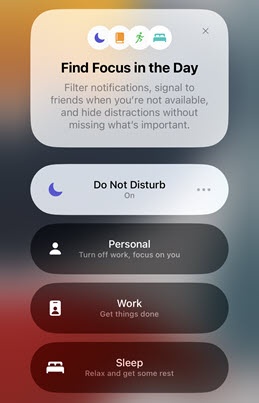
- TapDo Not Distrubto turn on or off.Do Not Distrub is on when the icon is highlighted.
For additonal support, refer to this Apple Support page
iPadOS 14.8 and older
- From a Home screen on your Apple® iPad®, navigate:.SettingsDo Not DisturbDo Not Disturb can also be turned on or off from the Control Center.
- Tap theDo Not Disturb switchto turn on
or off
.
When Do Not Disturb is turned on:- Alerts that arrive while the device is locked are silenced.
- A moon icon appears in the status bar.
- Tap theScheduled switchto turn on or off.While enabled, do the following:
- Enter the desired times in the 'From' and 'To' fields.
- Tap theDim Lock Screen switchto turn on or off.
- From the 'Silence' section, select one of the following options:Selected when a checkmark is present.
- Always
- While iPad is locked
- From the 'Phone' section, tapAllow Calls Fromthen select an option:Selected when a checkmark is present.
- Everyone
- No One
- Favorites
- All Contacts
- TapBack(upper-left).
- Tap theRepeated Calls switchto turn on or off.
