Google Pixel Watch 2 - Adjust Brightness / Display Settings
Here's how to adjust screen brightness and other display settings (Screen timeout, Background style, Font, etc.) on your Pixel Watch 2.
Ensure your Pixel Watch 2 software is up to date as the steps below apply to the most recent version.
Brightness
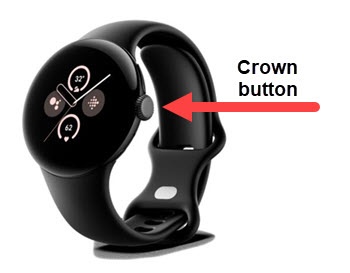
- From the Home screen, press theCrown buttonto open the apps screen.
- Navigate: .
- Tap the Plus icon
to increase or the Minus icon
to decrease to the desired level.
- TapAuto brightnessto turn on
or off
.
Screen Timeout
- From the Home screen, press theCrown buttonto open the apps screen.
- Navigate: .
- Tap the preferred screen timeout:
- 10 seconds
- 15 seconds
- 30 seconds
Font Size
- From the Home screen, press theCrown buttonto open the apps screen.
- Navigate: .
- Tap the Plus icon
- Press theCrown buttonto return to the Home screen.