TCL TAB Disney Edition 2 - Activate / Set Up Device
Here's how to quickly set up your TCL TAB Disney Edition 2.
If you need to transfer contacts and media from one device to another, follow these step-by-step instructions before activating the new device.
To activate the device on prepaid service, refer to Set up Verizon Prepaid Service.
- If powered off, press and hold thePower button(right edge, below the Volume buttons) until the TCL screen appears then release.
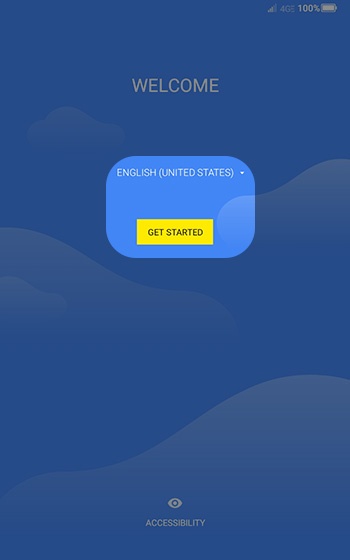
- From the 'WELCOME' screen, select the appropriate language then tapGET STARTED.
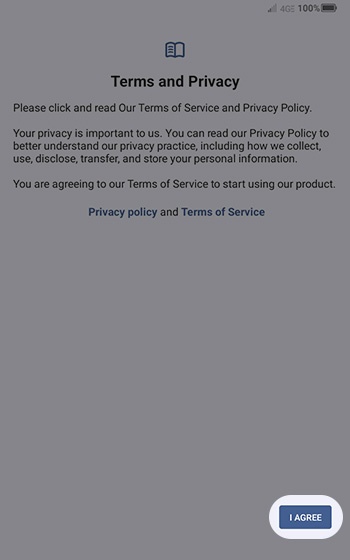
- To continue, review the Terms and Privacy then tapI AGREE.To review the Privacy policy or Terms of Service documents, tap the appropriate link.
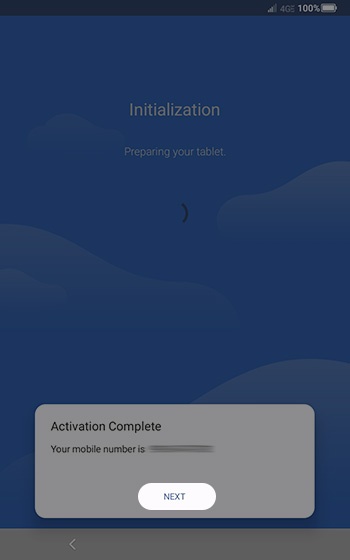
- From the 'Initialization' screen, tapNEXT.If prompted, enter the account PIN then follow the on-screen prompts (see Account PIN FAQs for additional info).If activating a new tablet on an existing phone number, ensure the old device is powered off.
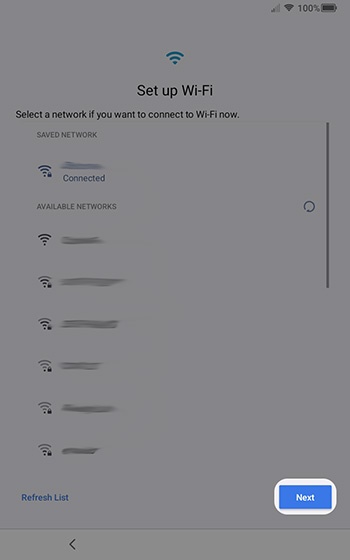
- From the 'Set up Wi-Fi' screen, select a network and enter the password, tapCONNECTthen tapNext.TapSkipto add Wi-Fi networks after setup is complete.
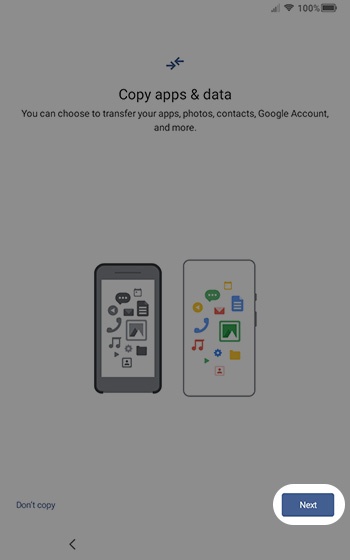
- From the 'Copy apps & data' screen, tapNextthen follow the on-screen options.If you'd like a fresh start, tapDon't copy.If troubleshooting, don't restore the device until all testing has been completed.
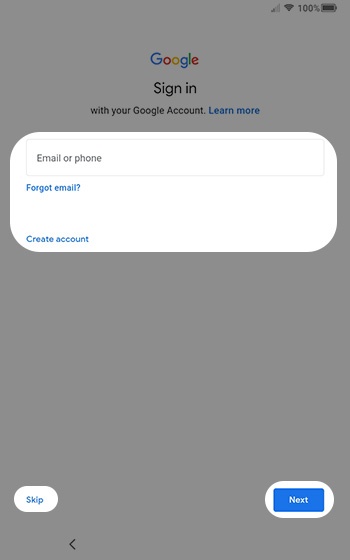
- Sign in to your existing Google™ account or create a new one.TapSkipto add a Google account after setup is complete.
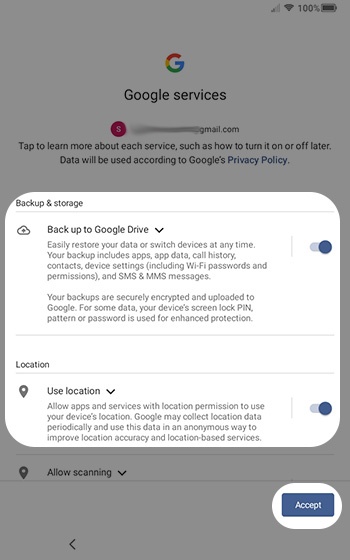
- From the 'Google services' screen, select any of the following switches to turn on
or off
then tap
Accept:If necessary, tapMoreto review additional services.- Back up to Google DriveThis option doesn't appear if a Google account wasn't added in step 7.
- Use location
- Allow scanning
- Send usage and diagnostic data
- From the 'Unlock with face' screen, tapNextthen follow the onscreen prompts.TapSkipto set up Face Recognition after setup is complete.
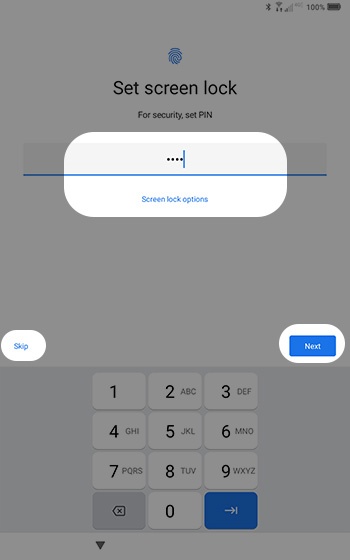
- From the 'Set screen lock' screen, enter a 4-digit PIN then tapNext.TapScreen lock optionsfor additional options.TapSkipto add a screen lock after setup is complete.
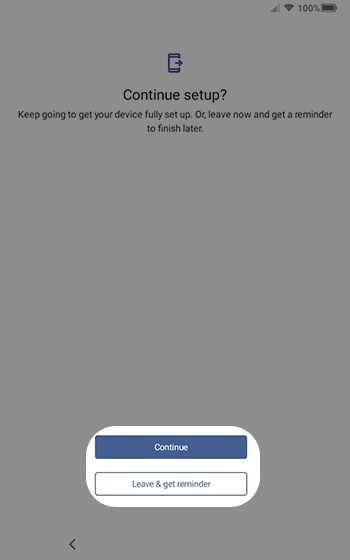
- From the 'Continue setup?' screen, tapContinue.TapLeave & get reminderto continue later.
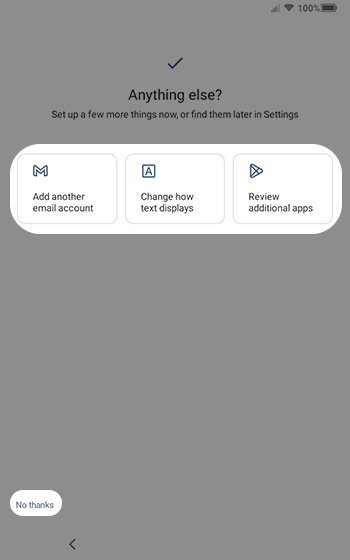
- From the 'Anything else?' screen, select any additional setup options then follow the on-screen instructions or tapNo thanksto continue setup.
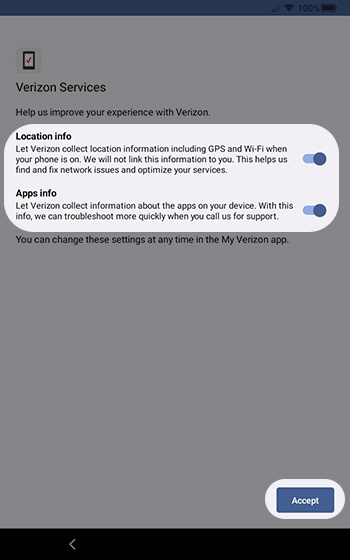
- From the 'Verizon Services' screen, select any of the options to turn on
or off
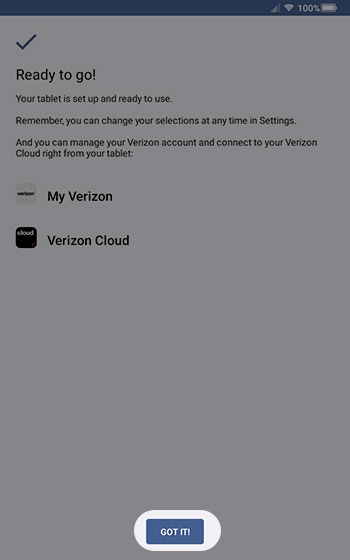
Accept. - From the 'Ready to go' screen, tapGOT IT!