Samsung Galaxy Watch6 / Galaxy Watch6 Classic - Activate / Set Up Device
Here's how to quickly set up your Galaxy Watch6 / Galaxy Watch6 Classic.
If the Galaxy Watch6 / Galaxy Watch6 Classic was purchased outside of Verizon, contact us to start a line of service for your device.
- The Galaxy Watch6 / Galaxy Watch6 Classic can be set up via Number Share. To set up with Number Share, the companion smartphone must be activated on the same Verizon account as the Galaxy Watch6 / Galaxy Watch6 Classic.
- If you're replacing an existing Samsung smartwatch, refer to Replace Existing Device.
- If you're pairing an existing Samsung smartwatch with a new Android smartphone, refer to Connect to New Phone.
- Before completing the steps below, verify:
- your companion Android™ smartphone has a cellular or Wi-Fi connection.
- you're in a Verizon coverage area.
- your eSim activation has been processed.Only required if using your device with Number Share.
- Ensure the Galaxy Watch6 / Galaxy Watch6 Classic is charged and powered on.If necessary, tap the watch display to begin.
- Install the Galaxy Wearable app on the companion Android smartphone via the Google Play™ Store.
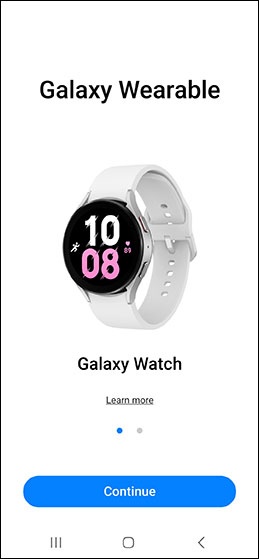
- Open theGalaxy Wearable app.
- TapContinue.If necessary, tapMorethenContinue.
- Tap 'Galaxy Watch6' or 'Galaxy Watch6 Classic'.If prompted, tapAllowto approve the necessary permissions.
- Ensure the passkey matches what's displayed on the Galaxy Watch6 / Galaxy Watch6 Classic then tapConfirm.If prompted, tapPAIR & CONNECTto connect your watch to your companion smartphone.
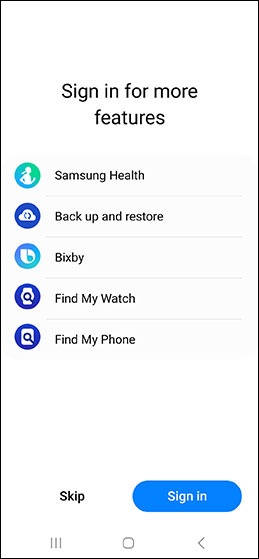
- TapSign into complete the Samsung account setup and access more features (e.g., Samsung Health, Find My Watch, Find my Phone, etc.).TapSkipto add a Samsung account after setup is complete.
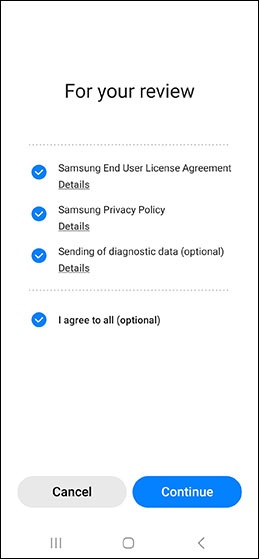
- To continue, review the 'Samsung End User License Agreement' and 'Samsung Privacy Notice' then tapContinue.
- If using a non-Samsung Android smartphone to complete the setup, tapAllowto grant Galaxy Watch6 Manager access to your watch.
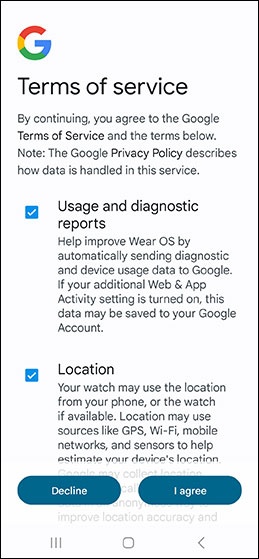
- Review the Google Terms of Service then tapI agree.
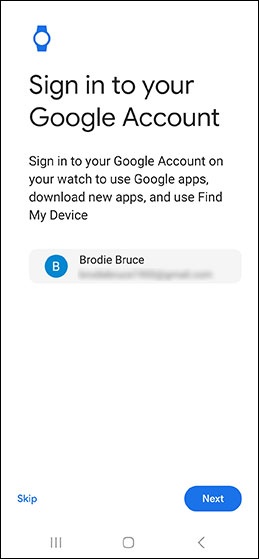
- To add your Google Account, confirm the correct account is displayed then tapNextor skip this step.
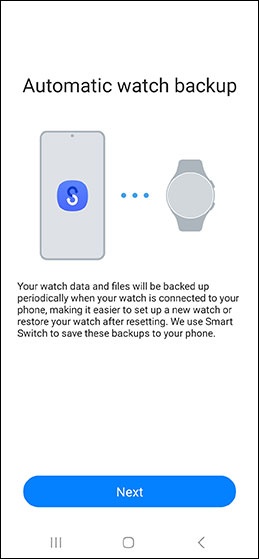
- From the 'Automatic watch backup' screen, review the info then tapNext.
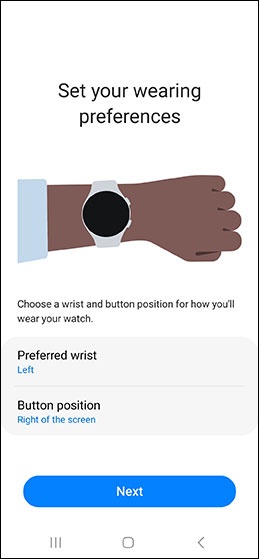
- From the 'Set your wearing preferences' screen, tapPreferred wristthen select an option.
- Review the features of your watch then tapNextafter each one to continue.
- Get help in an emergency
- Track your daily activities
- Understand your sleep for better rest
- Get heart rate zone guidance while you're running
- Take your running to a new level with advanced metrics
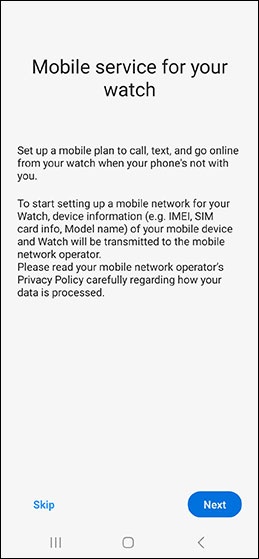
- If an eSIM has been activated on your account, tapNextto add your mobile plan.TapSkipto bypass this step and add a cellular plan later.
- From the Watch, tapStartto take a tour of your Watch.