KYOCERA Phones - Add eSIM Profile
Here's how to activate the eSIM in your KYOCERA smartphone using a QR code.
To check if your device is eSIM (embedded SIM) capable, navigate: then view IMEI (sim slot 2).
Alternatively, you can navigate: to view or add an eSIM.
Before completing the steps below, verify:
- Your device is unlocked:
- Devices purchased directly from Verizon are unlocked 60 days after purchase.
- Only unlocked devices are eligible for dual SIM functionality.
- Your eSIM activation has been processed:
- If you're an existing Verizon customer:
- For a new line of service, contact Consumer Sales at (800) 225-5499 to activate your eSIM.
- For an existing line, contact Customer Service at (800) 922-0204 to activate your eSIM.
- Your device is connected to the Verizon wireless network or has a Wi-Fi connection.The eSIM won't activate if you're outside the Verizon coverage area. Ensure you activate the eSIM prior to traveling abroad.
- Your device is running the current software version.
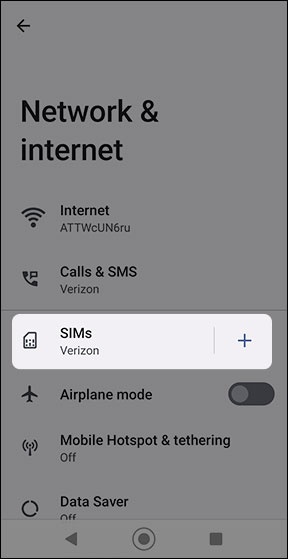
- From a Home screen, swipe up to display all apps.
- Navigate:.SettingsNetwork & internetSIMs
- Tap theAdd eSIM icon
.
If the Add eSIM icon is not available, tapSIMs - If using a non-Verizon branded (BYOD) device, scan the provided QR code using your phone's camera.If using a Verizon-branded device, a QR code is not required for activation.Non-Verizon branded (BYOD) Prepaid devices don't support eSIM activation.The QR code is sent via email.
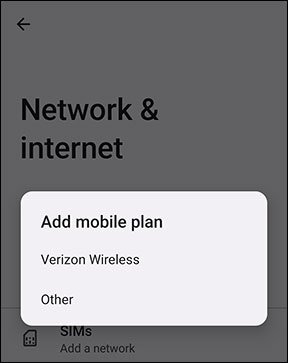
- When 'Add mobile plan?' displays, tapVerizon Wireless.It may take several minutes to add your plan.If 'No plans found' appears, tapTry again.If the Add eSIM icon isn't available, tapSIMs.
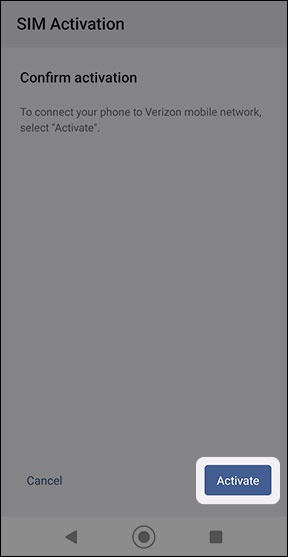
- From the 'Confirm activation' screen, tapActivate(bottom-right).If the Add eSIM icon isn't available, tapSIMs.
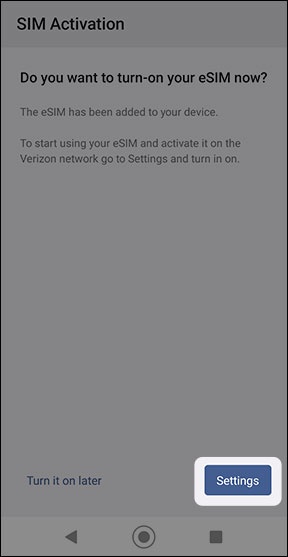
- From the 'Do you want to turn-on your eSIM now?' screen, tapSettings.If the Add eSIM icon isn't available, tapSIMs.
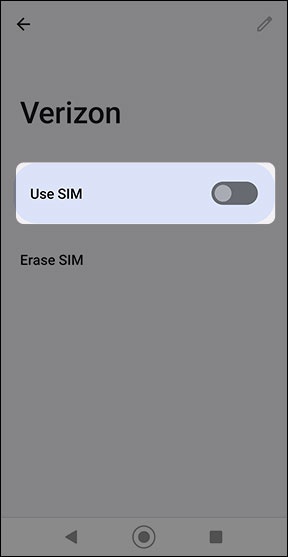
- Tap theUse SIM switchto turn on
then tap
Yesto confirm.If the Add eSIM icon isn't available, tapSIMs.