Samsung Galaxy A23 5G UW - Activate / Set Up Device
Here's how to quickly set up your Galaxy A23 5G UW.
If you need to transfer contacts and media from one device to another, follow these step-by-step instructions before activating your new Galaxy A23 5G UW.
For info on prepaid service activation, refer to Set up Verizon Prepaid Service.
- If powered off, press and hold thePower button(right edge, below the Volume buttons) until the Samsung Galaxy screen appears then release.
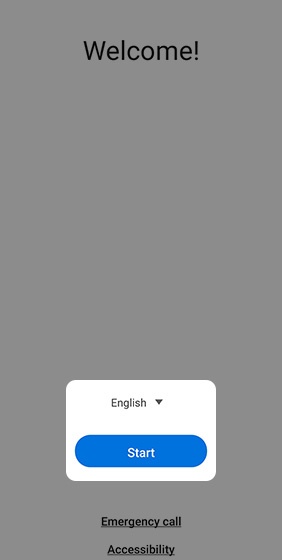
- Select the appropriate language then tapStart.
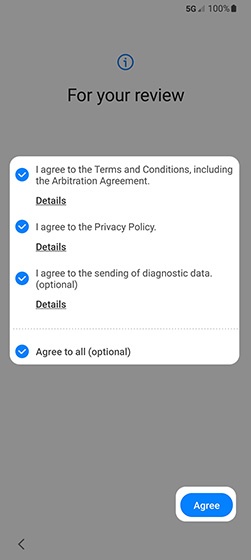
- To continue, select (check) the following then tapAgree(lower-right):Review the info before continuing.TapAgree to all (optional)to select all.
- I agree to the Terms and Conditions, including the Arbitration Agreement.Must be selected to continue.
- I agree to the Privacy Policy.Must be selected to continue.
- I agree to the sending of diagnostic data.Optional
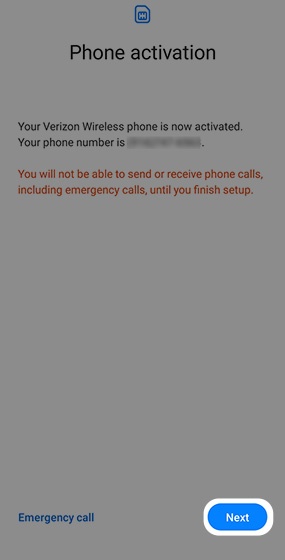
- From the 'Phone activation' screen, ensure the appropriate mobile number is listed then tapNext.If prompted, enter the account PIN then follow the onscreen prompts (see Account PIN FAQs for additional info).If activating a new phone, ensure the old phone is powered off.
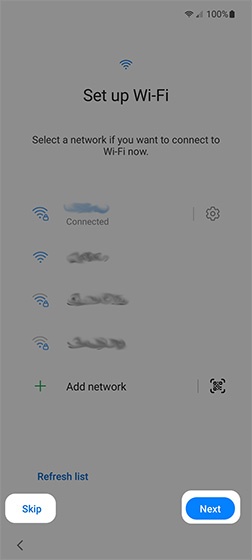
- From the 'Set up Wi-Fi' screen, select a network, enter the password when prompted then tapNext.TapSkipto add Wi-Fi networks after setup is complete.
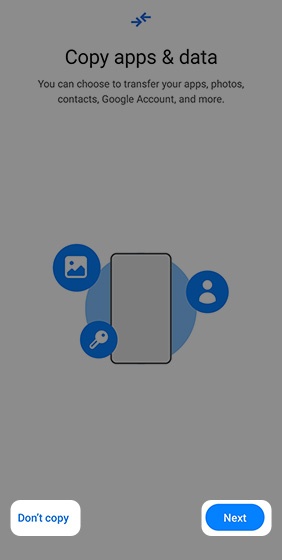
- From the 'Copy apps & data' screen, select the preferred option:
- Next
- Don't copyIf troubleshooting, choose this option and don't restore the device until all testing has been completed.
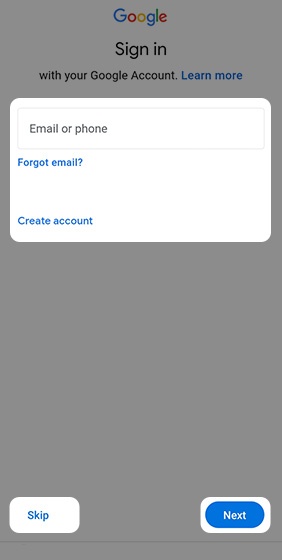
- From the 'Google Sign in' screen, sign in to your existing Google™ account or create a new one.TapSkipto add your Google account after setup is complete.
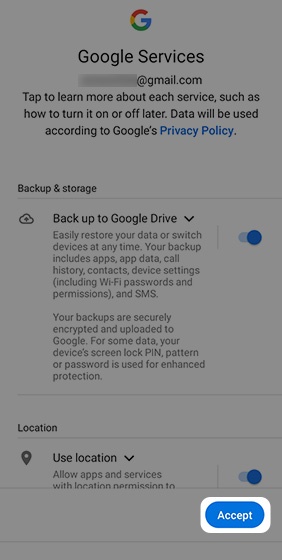
- From the 'Google Services' screen, tap the applicable switch(es) to turn on
or off
then tap
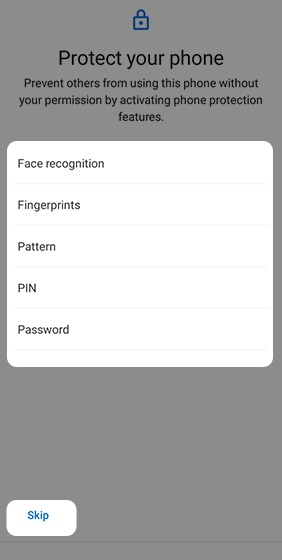
Accept(lower-right).If necessary, swipe up to review additional services. - From the 'Protect your phone' screen, select a protection option then follow the on-screen prompts.
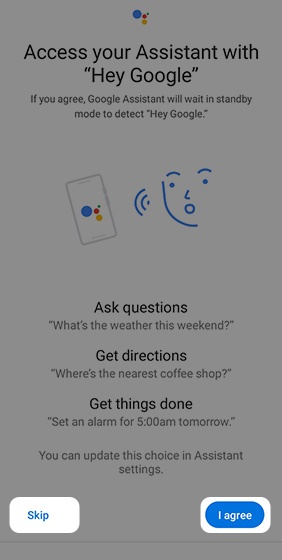
- From the 'Access your Assistant with Hey Google' screen, tapI agreeto set up Google Assistant.TapSkipto bypass this step.
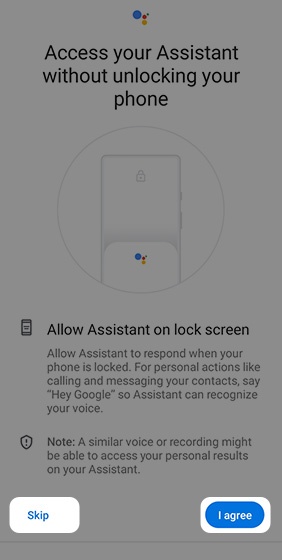
- From the 'Access your Assistant without unlocking your phone' screen, tapI agree.TapSkipto bypass this step.
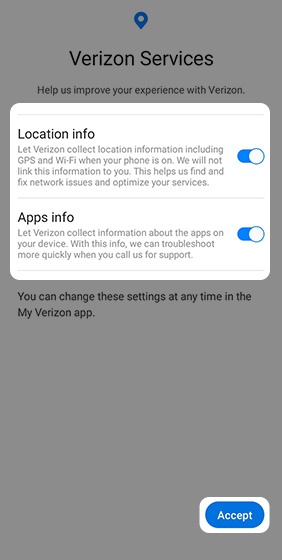
- From the 'Verizon Services' screen, tap the applicable switch(es) to turn the available options (e.g., Location info, Apps info) on
or off
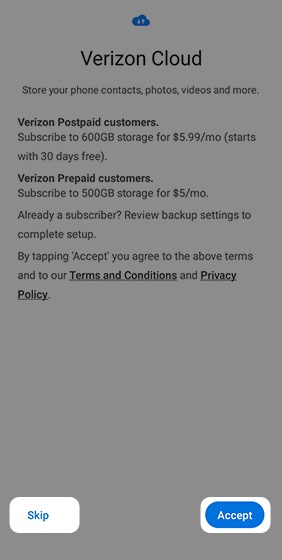
Accept. - From the 'Verizon Cloud' screen, review the info then tapAccept.TapSkipto set up Verizon Cloud after setup is complete.
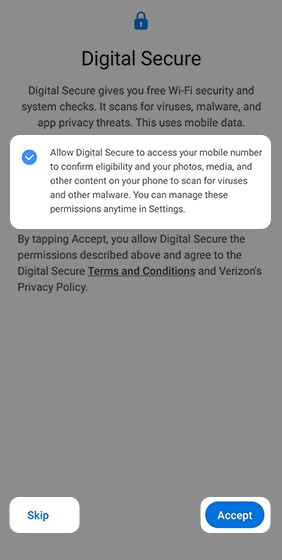
- From the 'Digital Secure' screen, review the info then tapAccept.TapSkipto change permissions after setup is complete.
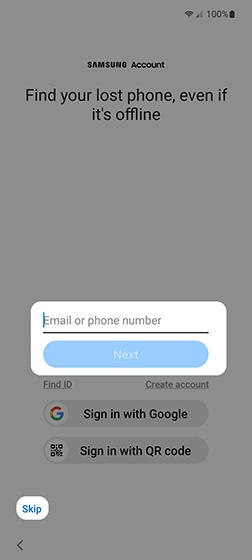
- From the 'Samsung account' screen, sign into your existing account or create a new Samsung account, then tapNext.TapSkipto add a Samsung account after setup is complete.
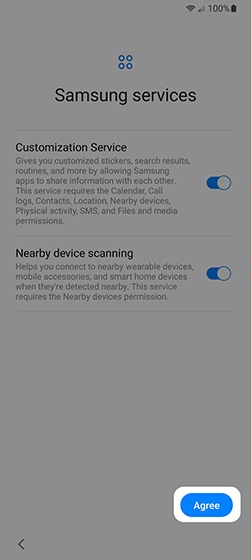
- From the 'Samsung services' screen, tap the applicable switch(es) to turn the available options onAgree.
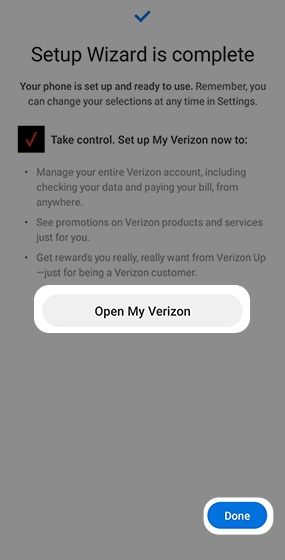
- From the 'Setup Wizard is complete' screen, tapOpen My Verizonto set up the My Verizon app.TapDoneto exit the Setup Wizard and set up later.