moto g play - 2023 - Activate / Set Up Device
Here's how to quickly set up your moto g play - 2023.
If you need to transfer contacts and media from one device to another, follow these step-by-step instructions before activating the new device.
- To activate the device on prepaid service, refer to Set up Verizon Prepaid Service.
- Depending on the options selected, some steps may appear in a different order.
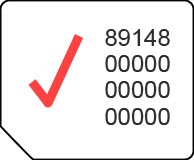
- Ensure a SIM card is inserted into the device prior to powering on.Devices purchased from Verizon include a pre-installed SIM card.
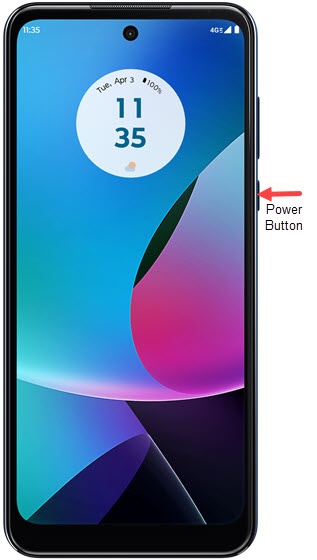
- If powered off, press and hold thePower buttonuntil the moto logo appears then release.
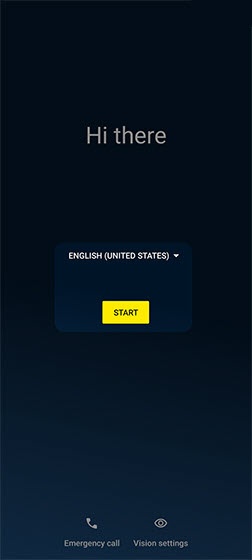
- Select the appropriate language then tapSTART.
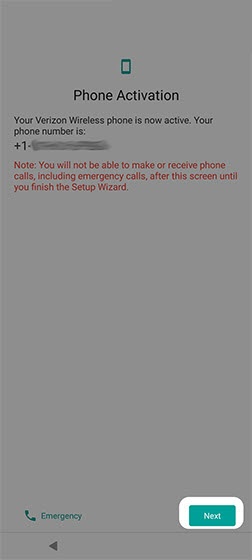
- If presented with the 'Phone Activation' screen, tapNext.If prompted, enter the account PIN then follow the onscreen prompts (see Account PIN FAQs for additional info).If activating a new phone, ensure the old phone is powered off.
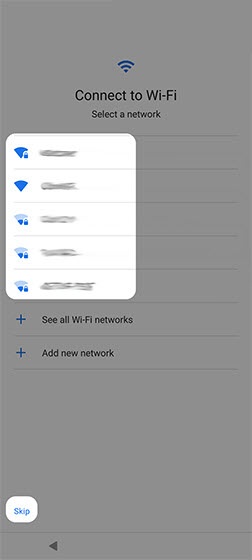
- From the 'Connect to Wi-Fi' screen, select a network then enter the password.TapSkipto add Wi-Fi networks after setup is complete.
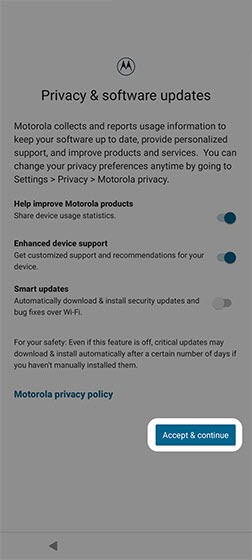
- From the 'Privacy & software updates' screen, tap any of the switches to turn on
or off
then tap
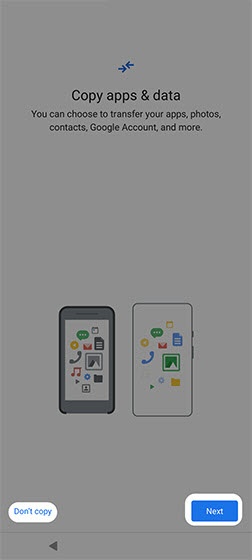
Accept & continue. - From the 'Copy apps & data' screen, select one of the following:
- Next
- Don't CopyIf troubleshooting, choose this option and don't restore the device until all testing has been completed.
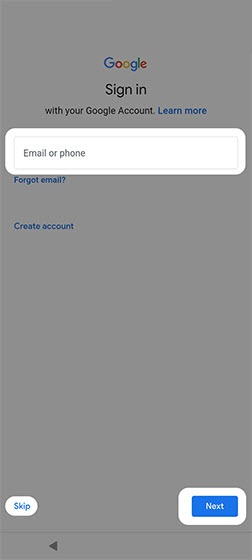
- Sign in to your existing Google™ account or create a new one.TapSkipto add your Google account after setup is complete.
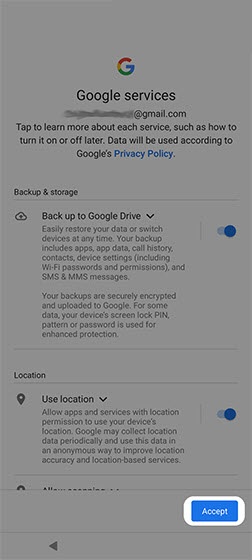
- From the 'Google services' screen, tap any of the switches to turn onAccept(may require scrolling to the bottom).
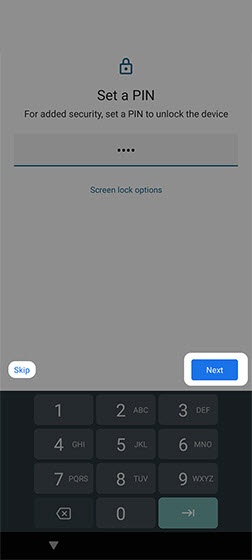
- From the 'Set a PIN' screen, enter lock code then tapNext.If desired, tapScreen lock optionsto select alternate screen lock options (e.g., Pattern, Password, etc.).TapSkipto set up a screen lock after setup is complete.
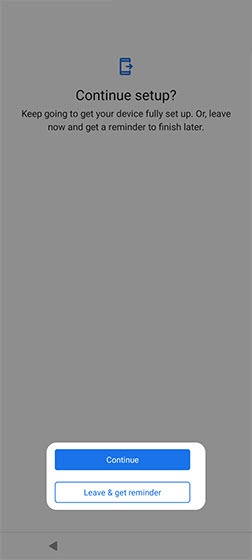
- From the 'Continue setup' screen, tapContinue.
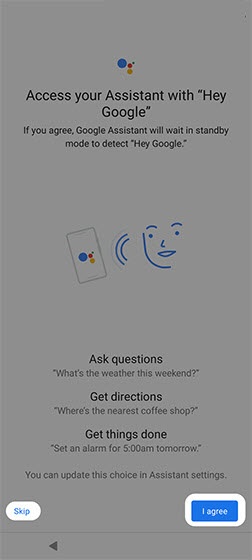
- From the 'Access your Assistant with Hey Google' screen, tapI agreeto set up Google Assistant.TapSkipto set up later.
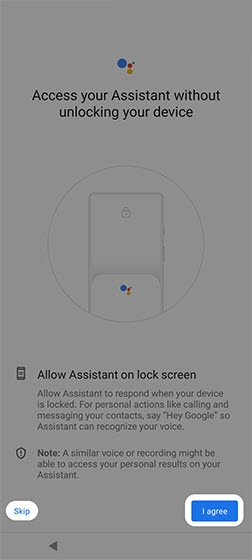
- From the 'Access your Assistant without unlocking your device' screen, tapI agreeto allow the Assistant from the lock screen.TapSkipto set up later.
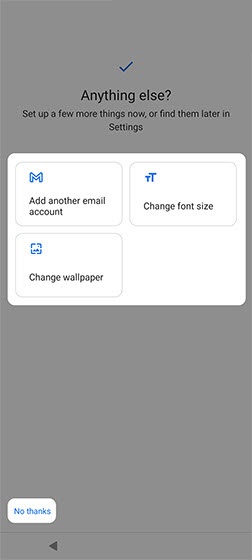
- From the 'Anything else?' screen, tap an option or tapNo thanksto skip.
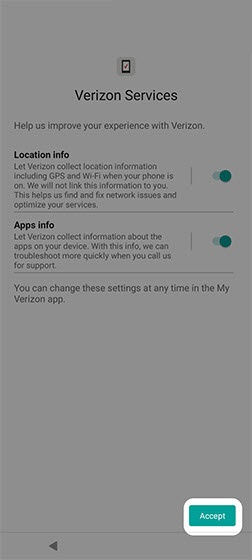
- From the 'Verizon Services' screen, tap any of the switches to turn on
or off
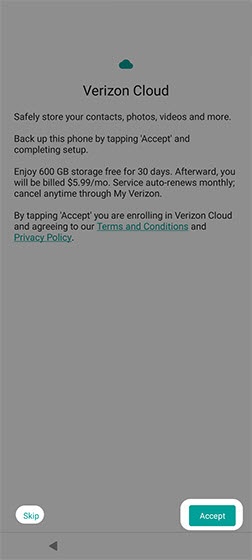
Accept. - From the 'Verizon Cloud' screen, review the Terms and Conditions then tapAccept.TapSkipto set up Verizon Cloud after the setup is complete.
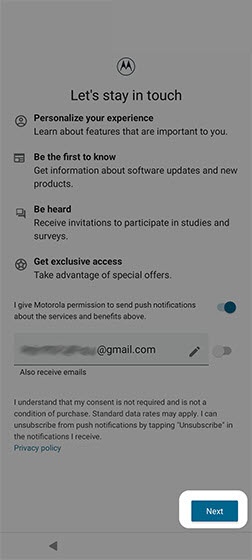
- From the 'Let's stay in touch' screen, tap any of the switches to turn onNext.
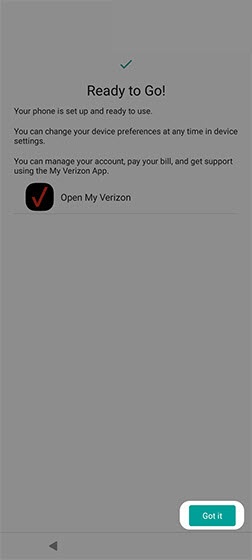
- From the 'Ready to Go!' screen, tapGot itto complete the setup.