Apple iPhone - Restart Device - Alternate Method
Here's how to restart your iPhone if it crashes and resets, freezes or if the touchscreen is unresponsive.
- In rare cases, a restart could affect data (e.g., backup in progress, cached data, etc.).
- If you are unable to restart your iPhone using these steps, check out this Apple Support page.
iPhone without a Home button
iPhones running iOS 13 or higher, may experience a delay before being able to power cycle the device back on after performing the steps below.
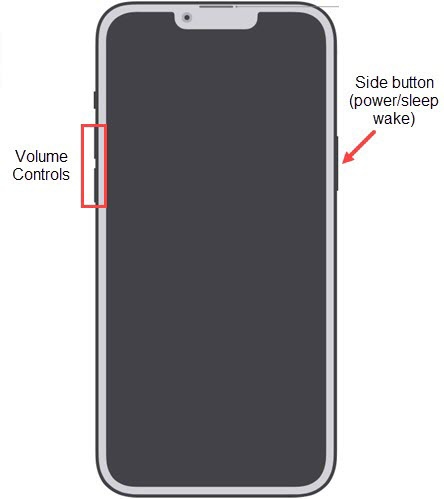
- Press and quickly release theVolume up buttonthen press and quickly release theVolume down button.
- To complete, press and hold theSide buttonuntil the Apple logo appears on the screen.
- Allow several seconds for the reboot process to complete.If your device won't power back on, partially charge the device then retry.
iPhone with a Home button
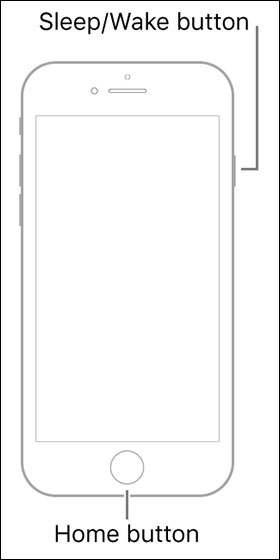
- Press and hold theSleep / Wake button(right edge) andHome button(at the bottom) until the Apple logo appears (at least 10 seconds but could take longer) then release.
- Allow several seconds for the reboot process to complete.If your device won't power back on, partially charge the device then retry.