TCL 30 LE - Activate / Set Up Device
Here's how to quickly set up your TCL 30 LE.
If you need to transfer contacts and media from one device to another, follow these step-by-step instructions before activating the new device.
- For info on prepaid service activation, refer to Set up Verizon Prepaid Service.
- Depending on the options selected, some screens may appear in a different order or not at all.
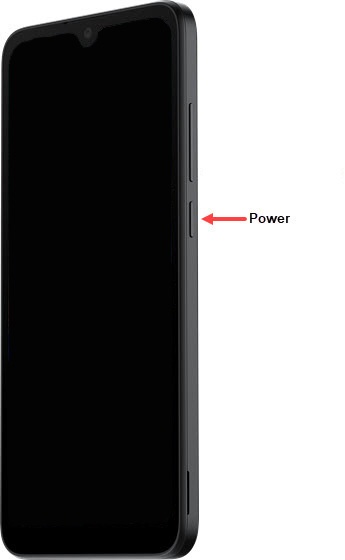
- Press and hold thePower button(right edge; below Volume buttons) until the TCL logo appears then release.
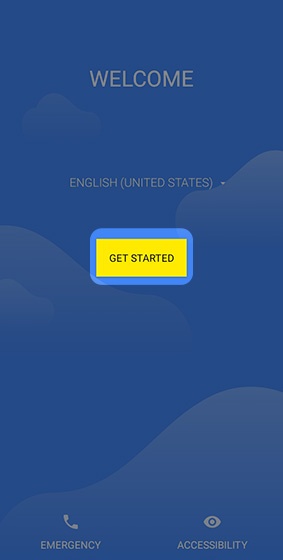
- Select the appropriate language then tapGet Started.
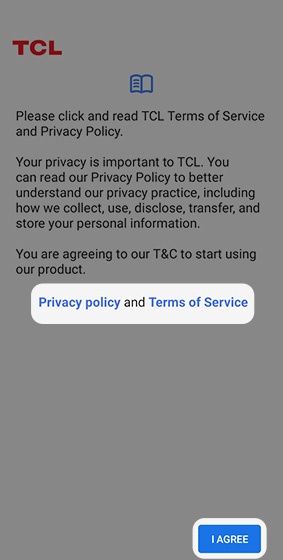
- From the 'Privacy policy and Terms of Service' screen, review then tapI AGREE.
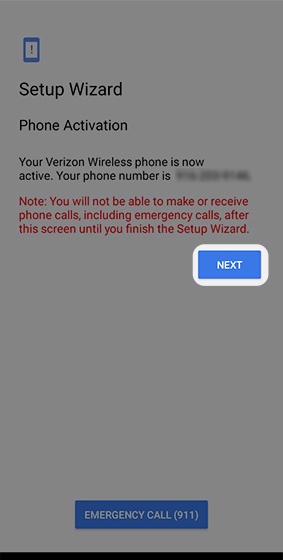
- From the 'Phone Activation' screen, tap 'NEXT' or tap 'ACTIVATE' (if available).If prompted, enter the account PIN then follow the on-screen prompts (see Account PIN FAQs for additional info).If activating a new phone, ensure the old phone is powered off.
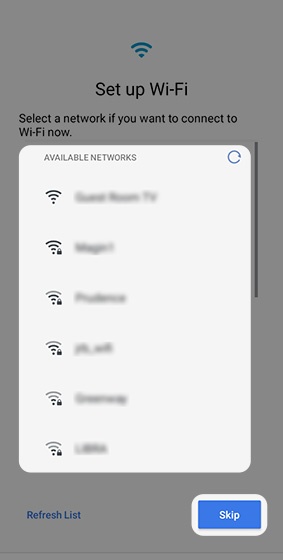
- From the 'Set Up Wi-Fi' screen, select a network then enter the password.TapSkipto add a Wi-Fi network after setup is complete.
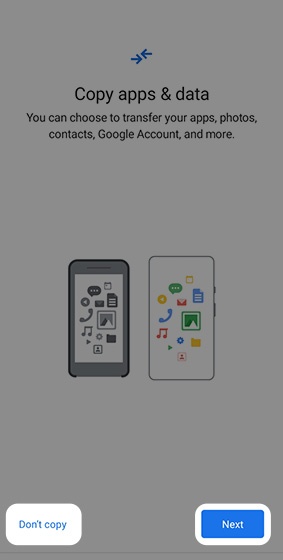
- If you'd like to restore your info from an old device, tapNext.TapDon't copyto transfer your apps and data at a later time.If troubleshooting, don't restore the device until all testing has been completed.
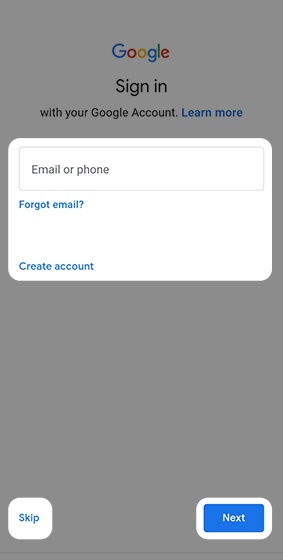
- Sign in to your existing Google™ account or create a new one.TapSkipto add your Google account after setup is complete.
- From the Google Hi screen, tap the appropriate link to view the Terms of Service and / or Privacy Policy then tapI agree.If prompted to keep your account updated with your phone number, review the info then tap 'Yes, I'm in' or 'Skip'.
- From the 'Google Services' screen tapMorethen tapAcceptafter reviewing all info. Tap any of the optional services to turn on
or off
.
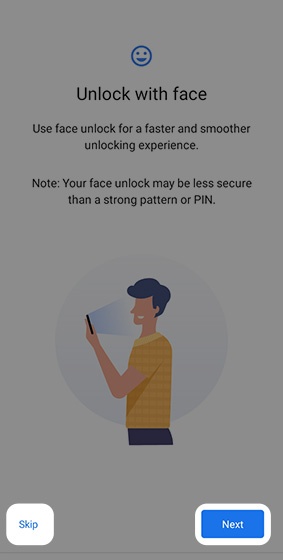
May require scrolling to the bottom of the screen. - From the 'Unlock with face' screen, tapSkipor tapNextto continue with setup.TapSkipto Set Up Face Recognition after setup is complete.When turned on, this function allows you to use your face to unlock your phone or approve purchases
- From the 'Set a PIN' screen, enter a lock code then tapNextthen follow the prompts.
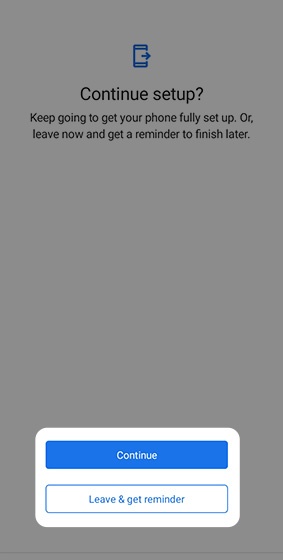
- From the 'Continue setup?' screen, tapContinue.TapLeave & get reminderto leave setup and get a reminder to finish later.
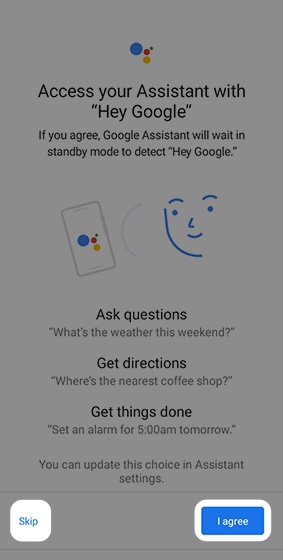
- From the 'Access your Assistant' screen, review the info then tapI agree.TapSkipto bypass this step.
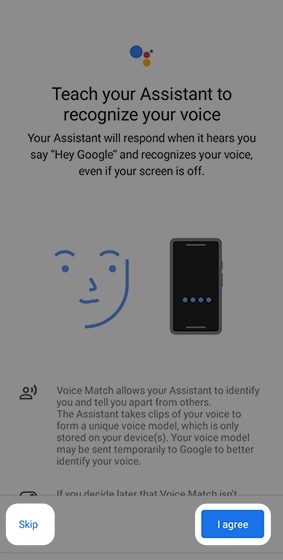
- From the 'Activate Voice Match' screen, tapI agreeto set up Voice Match.TapSkipto bypass this step.
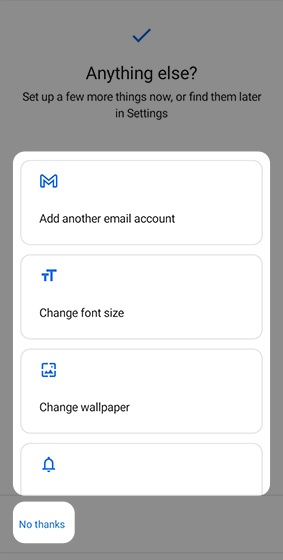
- From the 'Anything else?' screen, tap an option or tapNo thanksto skip.
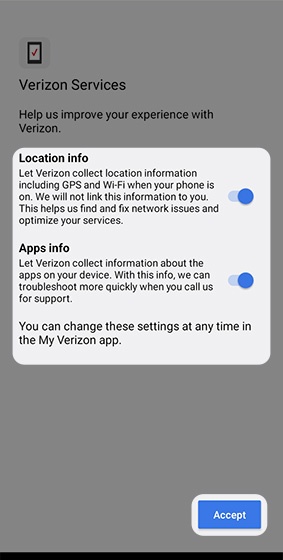
- From the 'Verizon Services' screen, tap any of the switches to turn on
then tap
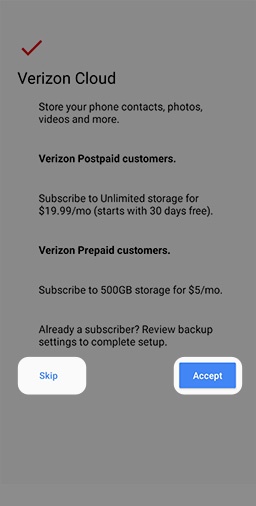
ACCEPT. - From the 'Verizon Cloud' screen, tap 'Agree' or 'Skip' to continue.TapSkipto set up Verizon Cloud after setup is complete.
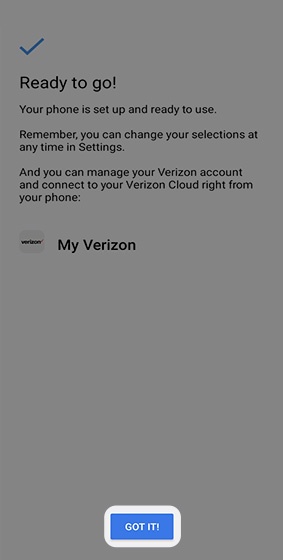
- From the 'Ready to go!' screen, tapGOT IT!to exit the device set up.