Orbic Tab8 5G - Factory Data Reset (Powered Off)
Here's how to factory / hard reset your Orbic Tab8 5G if the screen freezes or call, app, audio or sync issues occur and the device won't start up.
- Perform a factory data reset only if necessary as it removes your Google™ account and all data including system data, app data and media.
- For devices with Android™ Device Protection turned on, it's imperative Google sign-in credentials are known prior to completing a factory reset with the device powered off. If credentials are unknown, do one of the following:
- Attempt to sign in with any Google account previously used on the device.
- Reset the password via the https://www.google.com/accounts/recovery website.
- If a pattern, PIN, etc. is or has ever been set up on the device, Google account sign-in is required during initial setup.
- Ensure your device is powered off.If your Orbic® Tab8 5G™ is responsive and can be powered on, the preferred reset method should be performed.
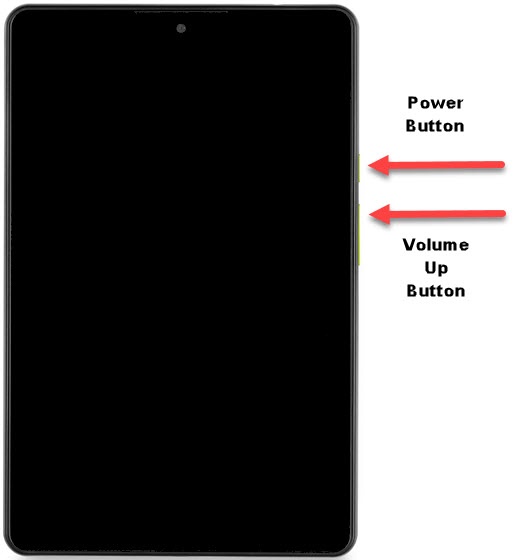
- Press and hold thePower and Volume up buttonsuntil the Orbic splash screen is shown on the screen then release only the Power button until the Recovery screen displays.
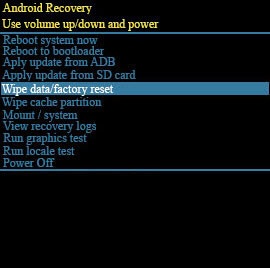
- From the 'Android Recovery' screen selectWipe data/factory reset.Use the Volume buttons to cycle through available options and the Power button to select.The image below is an example.
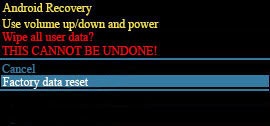
- SelectFactory data reset.The image below is an example.
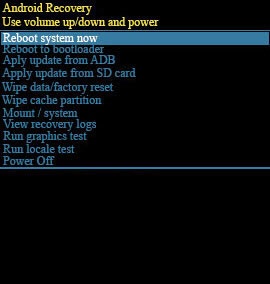
- SelectReboot system now.The image below is an example.Allow several minutes for the factory data reset process to complete.If applicable, set up your device.