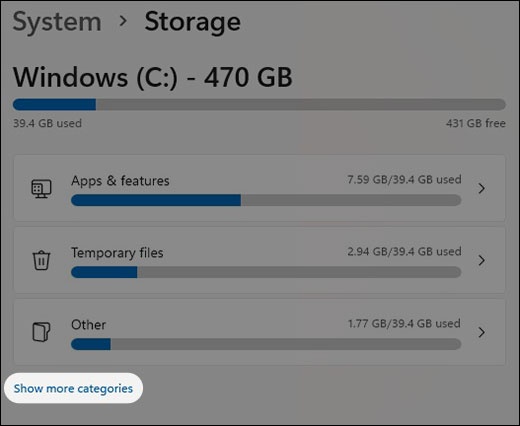
Windows 11 - Check Device Storage
Here's how to view free up space if your Windows 11 device runs slow or crashes and/or apps freeze when running them.
If your device isn't running Windows® 11, refer to Windows 10 instructions.
- From the Windows desktop, navigate:(left-panel).StartSettingsSystem
- Tap or clickStorage.
- From the Storage Usage section, view the free space (e.g., 145 GB free).
- To view additional storage (e.g., Pictures, Documents, etc., tapShow more categories.