Windows 11 - Add a Wi-Fi Network
Here's how to connect your Windows 11 device to a Wi-Fi network.
- If your Windows® operating system is unknown, refer to Determining Software Version - Windows.
- If your device is not running Windows® 11, refer to Windows 10 instructions.
- For Mi-Fi devices, refer to Wi-Fi Encryption Key/Passphrase for assistance locating the default network credentials (SSID/Password).
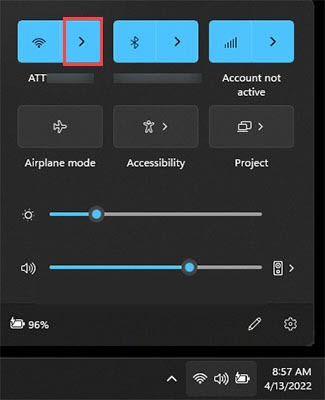
- From the Windows desktop, tap or click theWi-Fi icon
(located in the lower-right of the taskbar) to open the Quick Setting menu.
Utilize the touchscreen (if available) or mouse to select the on-screen options.If the Wi-Fi icon is not visible, tap or click theCellular Signal icon, also located in the lower-right, in the taskbar.
Alternate navigation: click.Windows iconSettingsNetwork & InternetWi-FiShow available networks - Tap or click theManage Wi-Fi connection icon.
- Tap or click an available network to select it.For notebook computers (non-tablets), a physical switch may need to be turned on.If the preferred network is not listed, it can be added manually.
- ClickConnect.To automatically connect to the Wi-Fi network whenever it is available, select (check)Connect automaticallyprior to connecting.
- If presented, enter the appropriate network security key or username and password then clickOK.