Verizon Router - Change Wi-Fi Password
Here's how to change the Wi-Fi password used to connect devices to your Verizon Router.
- Sign in to the Admin WebGUI.
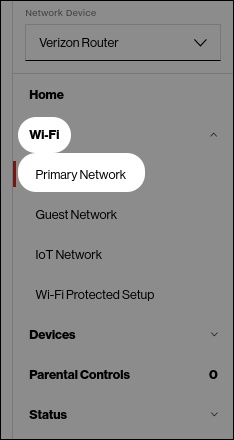
- From the left menu, clickWi-Fi>Primary Network.
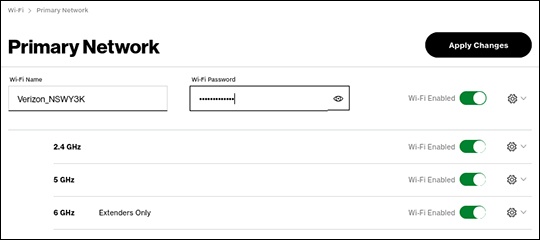
- From the 'Primary Network' section, enter the appropriate password into the 'Wi-Fi Password' field.Passwords can contain 8-63 alphanumeric characters and are case-sensitive.Click theView icon
to display the current password.
The network name (SSID) can also be changed in the 'Wi-Fi name' field.If the Wi-Fi password is changed, the network settings on the computer must be updated. For assistance, select the appropriate operating system: - ClickApply changes.