Arlo Go 2 LTE Security Camera - Activate / Set Up Device
Here's how to quickly set up your Arlo Go 2 security camera.
In order to activate the security camera, it must have its own mobile number and be provisioned with the appropriate 'Streaming Camera' SFO. To add a new line of service, transfer to Inside Sales using CTI.
To set up your camera, you need:
- an active SIM card inserted into the camera.A SIM card is typically pre-installed.
- access to a computer or smartphone with Internet access.If necessary, install the Arlo app.For smartphones, the Arlo app is required and available via the Google Play and Apple App stores. Smartphone requirements are:
- iOS 11.0 or higher
- Android 5.0 or higher
For computers, the Arlo web portal doesn't support Internet Explorer®. For more info visit Arlo system requirements.
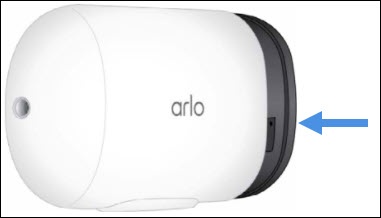
- Insert the battery but do not slide the camera into the protective housing.
- Open the Arlo app or navigate to the Arlo web portal at https://arlo.netgear.com/ via a browser.
- Do one of the following:
- If setting up a new Arlo account, tap or clickCreate Accountthen follow the on-screen steps to sign up for an Arlo account.
- If you already have an Arlo account, enter your credentials then tap or clickLog In.If using the app, tapLog Into access the 'Email Address' and 'Password' fields.
- Tap or clickAdd New Device.
- From the 'Cameras' section, tap or clickGo2.If Go2 isn't visible, tap or clickOthersthen tap or clickGo2.
- Review the 'Meet your Arlo Go2' screen then tap or clickContinue.
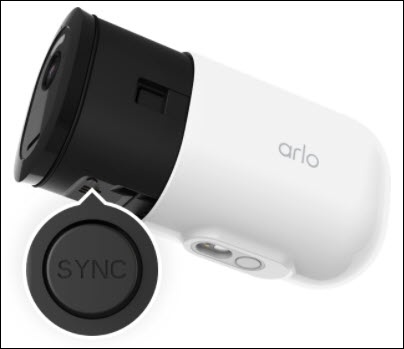
- Press and hold the Sync button on the device for about two seconds.When released, the LED light should blink blue.
- If prompted with steps to insert your SIM and battery, tap or clickContinue.If using the app, swipe the screen right to left until Continue appears.
- Tap or clickContinueto confirm the LED light is blinking blue.If the light is no longer blinking, repeat step 7.
- Aim your camera lens 4 to 8 inches in front of the QR code displayed on-screen until a chime is heard.
- If you heard the chime sound, tap or clickContinue.Allow several seconds for the camera to be discovered.If the chime sound wasn't heard, tap or clickI didn't hear a chimeto review the Arlo tips then repeat steps 7 through 10.
- Once the camera is discovered, slide the camera into the protective housing until it clicks.
- From the 'Name your Arlo Camera' screen, enter the desired camera name and time zone then tap or clickContinue.
- From the 'Position your Arlo Camera' screen, tap or clickContinue.
- From the 'Your Arlo Camera is now active' screen, tap or clickFinish.