Samsung Galaxy A02s - Common Camera Settings
Here's info on common camera settings (e.g., flash, storage location, front / rear camera, etc.) for your Galaxy A02s.
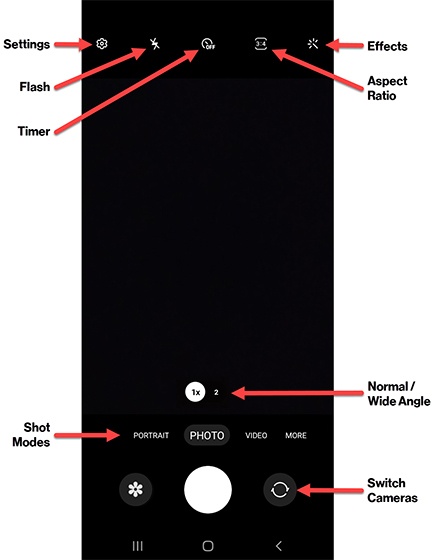
Settings
- From a Home screen, tap theCamera icon
(lower-right).
If unavailable, swipe up from the center of the display then tapCamera. - Tap theSettings icon
.
- Tap any of the following switches to turn on
or off
:
- Save selfies as previewed
- Auto HDRHDR (High Dynamic Range) combines photos or videos taken at different exposures for one optimal photo or video.
- Grid lines
- Location tags
- Shutter sound
- Tap any of the following then configure as preferred:
- Swipe Shutter button to
- Take burst shot
- Create GIF
- Shooting methods
- Press Volume key to
- Take picture or record video
- Zoom
- Control the system volume
- Floating Shutter buttonTap to turn on
- Show palmTap to turn on or off.
- Settings to keepTap any of the switches to turn on or off:
- Camera mode
- Selfie angle
- Filters
- Storage locationOption only appears if an SD / memory card is inserted.
- Internal storage
- SD card
Flash
- From a Home screen, tap theCamera iconIf unavailable, swipe up from the center of the display then tapCamera.
- Tap theFlash icon
then select an option:
- Off
- Auto
- On
Timer
- From a Home screen, tap theCamera iconIf unavailable, swipe up from the center of the display then tapCamera.
- Tap theTimer icon
then select an option:
- Off
- 2 seconds
- 5 seconds
- 10 seconds
Aspect Ratio
- From a Home screen, tap theCamera iconIf unavailable, swipe up from the center of the display then tapCamera.
- Tap theAspect Ratio icon
then select an option:
- 3:4 (4:3 in landscape mode)
- 9:16 (16:9 in landscape mode)
- 1:1
- Full
Camera effects
- From a Home screen, tap theCamera iconIf unavailable, swipe up from the center of the display then tapCamera.
- Tap theEffects icon
then swipe left/right to choose a preset effect (e.g., Grace, Sunshine, Vivid, etc.).
Camera mode
- From a Home screen, tap theCamera iconIf unavailable, swipe up from the center of the display then tapCamera.
- While in the camera screen, swipe left or right to select a mode:
- Portrait: Blur the background so your subject stands out in a picture.
- Photo: Capture a picture using your Galaxy A02s camera.
- Video: Capture a video using your Galaxy A02s camera.
- More: Access other camera modes:
- Pro: Manually adjust the ISO sensitivity, exposure value, and white balance.
- Panorama: Tap the Camera button then pan slowly in one direction.
- Macro: Emphasizes details and adds a background blur to close-up shots.
Switch cameras
- From a Home screen, tap theCamera iconIf unavailable, swipe up from the center of the display then tapCamera.
- Tap theCamera Facing icon
to switch between the rear and front-facing cameras.