Pixel 5 - Activate / Set Up Device
Here's how to quickly set up your Pixel 5.
If you need to transfer contacts and media from one device to another, follow these step-by-step instructions before activating the new device.
To activate the device on prepaid service, refer to Set up Verizon Prepaid Service.
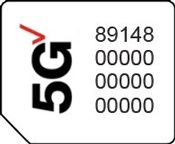
- Ensure a 5G SIM card is inserted into the device prior to powering on.To avoid potential activation / service issues, don't insert a 4G SIM card.5G devices purchased from Verizon include a pre-installed 5G SIM card.
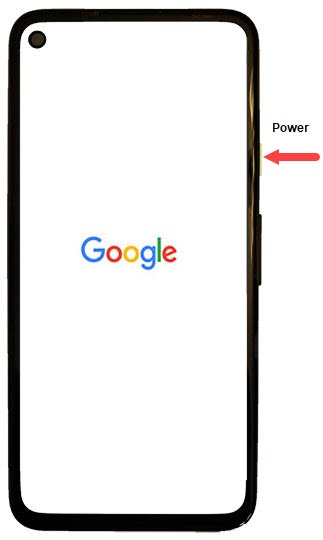
- If powered off, press and hold thePower buttonuntil the Google logo appears then release.
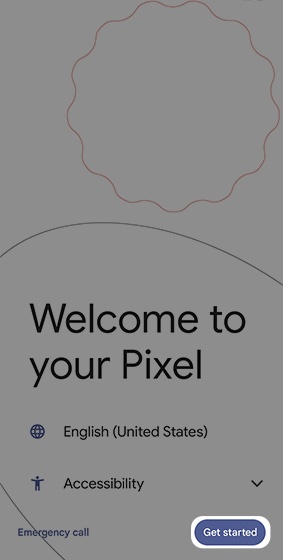
- Select the appropriate language option then tapGet started.
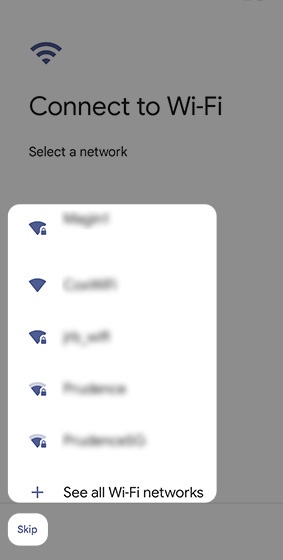
- From the 'Connect to Wi-Fi' screen, select a network then enter the password.TapSkipto add a Wi-Fi network after setup is complete.
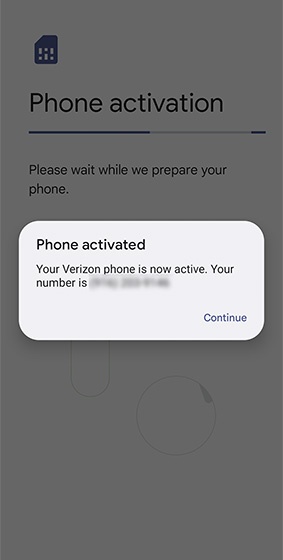
- From the 'Phone activation' screen, tapContinue.If prompted, enter the account PIN then follow the onscreen prompts (see Account PIN FAQs for additional info).If activating a new phone, ensure the old phone is powered off.
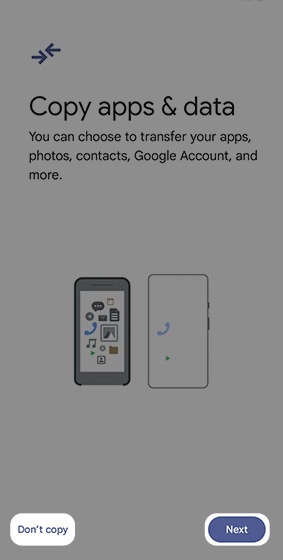
- From the 'Copy apps & data' screen, select one of the following:
- Next
- Don't copyIf troubleshooting, choose this option and don't restore the device until all testing has been completed.
- If presented, connect either the supplied cable from the old Android™ device to the new one or tap 'Can't use old phone?' then follow the instructions.If 'Other ways to copy data' is selected, follow the onscreen instructions to copy content from another Android device, an iPhone®, or the cloud.
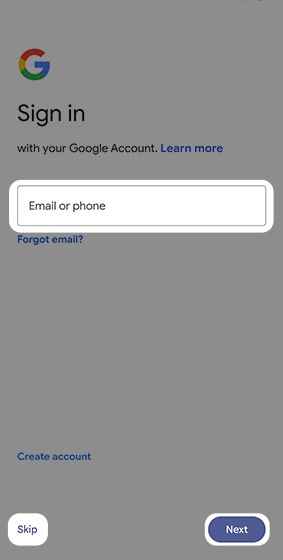
- From the 'Sign in' screen, enter a Google™ email address then tapNext.TapSkipto add your Google account after setup is complete.
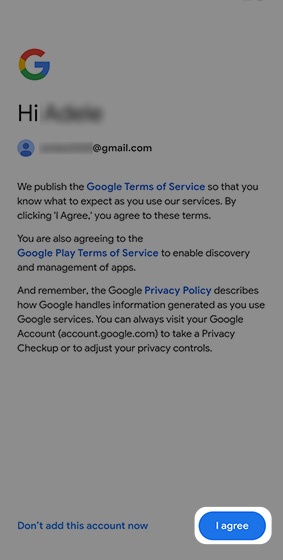
- Review the Google Terms of Service, Google Play Terms of Service, and Google Privacy Policy then tapI accept.
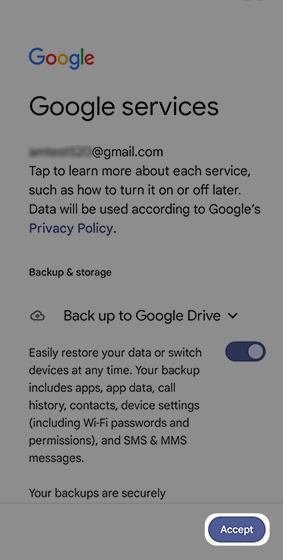
- From the 'Google Services' screen, select the desired options then tapAccept.If necessary, swipe up to review additional services.
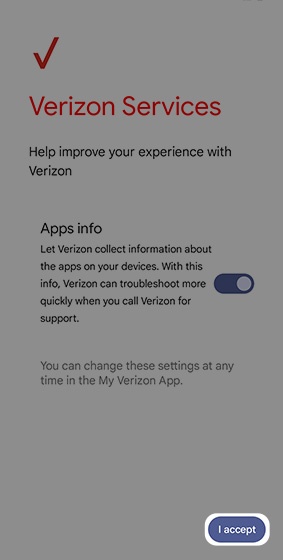
- From the 'Verizon Services' screen, select the desired options to turn on
or off
then tap
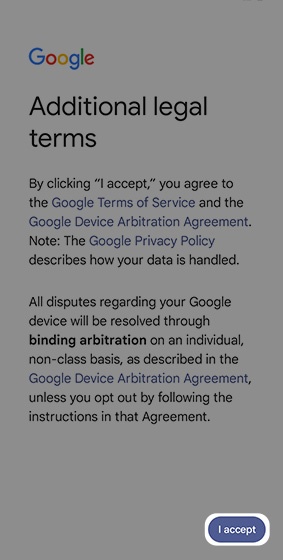
I accept. - Review the Google Additional legal terms, Google Terms of Service, Google Device Arbitration Agreement, and Google Privacy Policy then tapI accept.
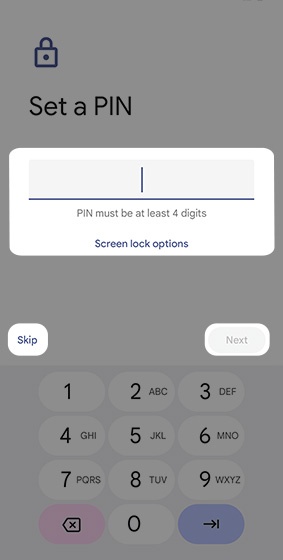
- From the 'Set screen lock' screen, enter a PIN code then tapNext.TapSkipto set up a screen lock after setup is complete.
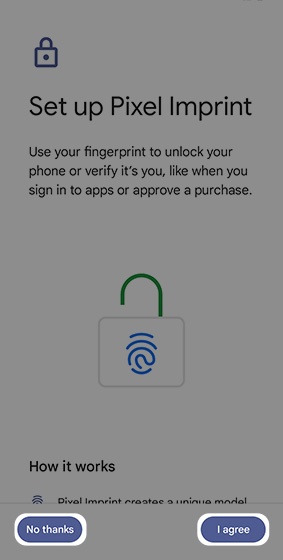
- From the 'Pixel Imprint' screen, tapI agreethen follow the on screen prompts.TapNo thanksto set up fingerprint recognition after setup is complete.
- From the 'Continue setup?' screen, tap 'Continue' to fully set up and personalize your device.TapLeave & get reminderto finish later. The setup reminder appears in your notification panel to complete later.
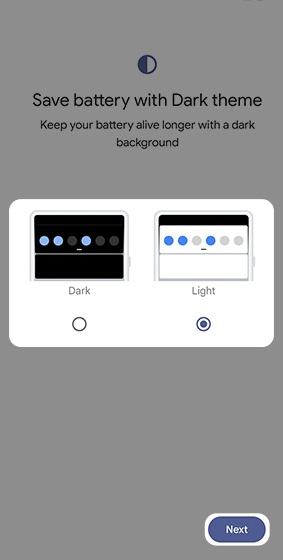
- From the 'Save battery with Dark theme' screen, select 'Dark' or 'Light' then tapNext.
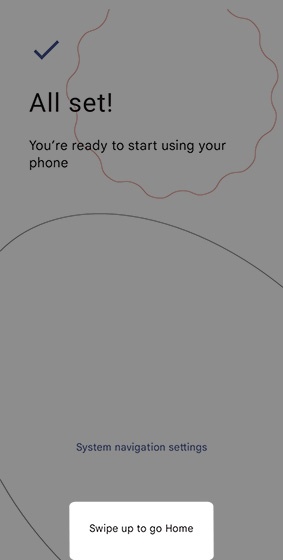
- Once the 'All set!' screen displays, the setup is complete.