Apple Watch - Use the ECG App
Here's how to use the ECG app on your Apple Watch to record the timing and strength of the electrical signals that make your heart beat.
- The steps below apply to the Apple Watch Series® 4, Series 5 and Series 6.
- Ensure your Apple Watch is updated to the latest version of watchOS.
- The ECG app isn't intended for use by people under 22 years old.
- The ECG app isn't available while an Apple Watch is set up in Standalone Mode (Set Up for a Family Member).
- For more info on the ECG app, check out this Apple Support page.
Take an ECG
- Using your iPhone, open theHealth app.
- Tap theBrowse tab(lower-right).
- TapHeartthen tapElectrocardiograms (ECG).
- TapSet Upthen follow the on-screen instructions.
- Ensure your Apple Watch fits comfortably on your wrist.
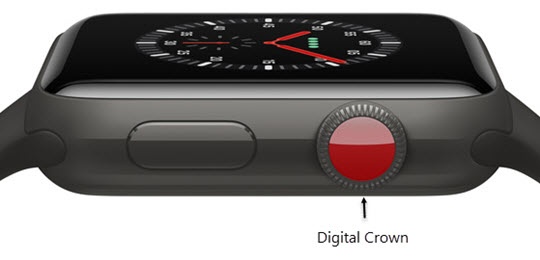
- From the Watch face screen, press theDigital Crownto access the Apps screen.
- Tap theECG app.
- Keep your arm steady while holding your finger on the Digital Crown for 30 seconds.Don't press the Digital Crown during the session.
- View the classification.If necessary, tapAdd Symptoms, select your symptoms, tapSavethen tapDone.For more info on the results of your ECG, check out this Apple Support page.

View Health Info
- Using your iPhone, open theHealth app.
- Tap theBrowse tab(lower-right).
- TapHeartthen tapElectrocardiograms (ECG).
- View your ECG results.To share with your doctor, tapExport a PDF for your doctor.