TCL TAB 8" - Factory Data Reset (Powered Off)
Here's how to factory / hard reset your TCL TAB 8 if the screen freezes or app, audio or sync issues occur and the device won't start up.
- Perform a factory data reset only if necessary as it removes your Google™ account and all data including system data, app data and media.
- For devices with Android™ Device Protection turned on, it's imperative Google sign-in credentials are known prior to completing a factory reset with the device powered off. If credentials are unknown, do one of the following:
- Attempt to sign in with any Google account previously used on the device.
- Reset the password via the https://www.google.com/accounts/recovery website.
- If a pattern, PIN, etc. is or has ever been set up on the device, Google account sign-in is required during initial setup.
- Ensure the device is powered off.If the device is responsive and can be powered on, the preferred reset method should be performed.
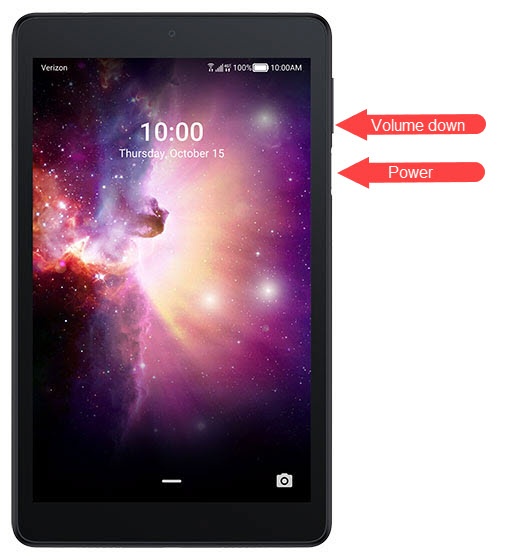
- Press and hold theVolume down button.
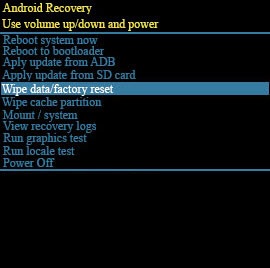
- While continuing to hold volume down, press and hold thePower buttonfor 10 seconds then release to access the 'Android Recovery' screen.Use the Volume buttons to cycle through available options and the Power button to select.The image below is an example.
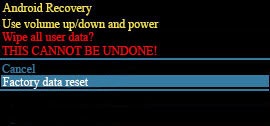
- SelectFactory data reset.Allow several seconds for the factory data reset to complete.The image below is an example.
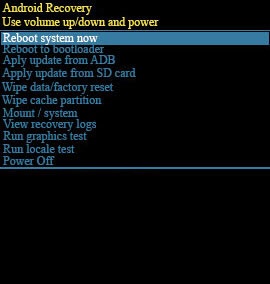
- SelectReboot system now.The image below is an example.Allow several minutes for the reboot process to complete.If applicable, set up your device.