Google Pixel Phones - Add Cellular Plan Using eSIM
Here's info on how to add a cellular plan for your eSIM to your dual SIM capable Pixel smartphone.
The following steps below only apply to Pixel 4 and newer models.
Before completing the steps below, verify:
- Your device is unlocked:
- Devices purchased directly from Verizon are unlocked 60 days after purchase.
- Only unlocked devices are eligible for the dual SIM functionality.
- Your eSIM activation has been processed and you've received the QR code via email:
- If you're an existing Verizon customer:
- For a new line of service, contact Consumer Sales at (800) 225-5499 to activate your eSIM.
- For an existing line, contact Customer Service at (800) 922-0204 to activate your eSIM.
- Your device is connected to the Verizon wireless network or has a Wi-Fi connection.The eSIM won't activate if you're outside of the Verizon coverage area. Ensure you activate the eSIM before traveling abroad.
- From a Home screen, swipe up from the middle to display all apps.
- Navigate:.SettingsNetwork & Internet
- Tap thePlus sign +next to SIMs.If the Plus sign + is missing, tapSIMs.
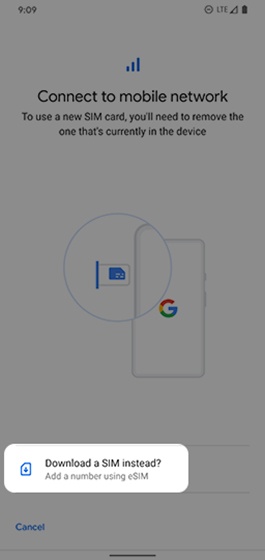
- From the 'Connect to mobile network' screen, tapDownload a SIM instead?.If prompted, review the 'Use 2 SIMs' notification, then tapYes.
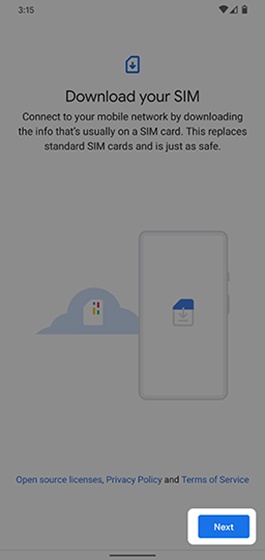
- From the 'Download your SIM' screen, tapNext.
- To have the eSIM provisioned on the account do the following steps:
- Navigate: .
- Capture the IMEI (IMEI2) info.
- TapOK.
- Contact Verizon Support to provision the eSIM on the account with the info above.
- To download and activate the eSIM, connect the device to Wi-Fi then follow these steps:
- Power the screen off then back on.
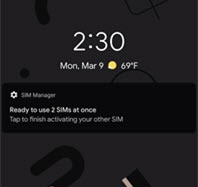
- Tap the SIM Manager notification.If the notification was dismissed:
- Navigate: .
- Tap thePlus sign +next to SIMs.
- From the 'Connect to mobile network' screen, tapDownload a SIM instead.
- From the 'Download your SIM' screen, tapNext.
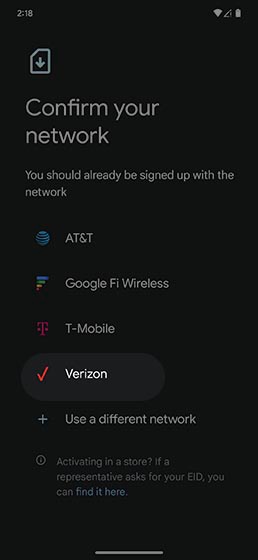
- From the 'Confirm your network' screen, choose your provider.
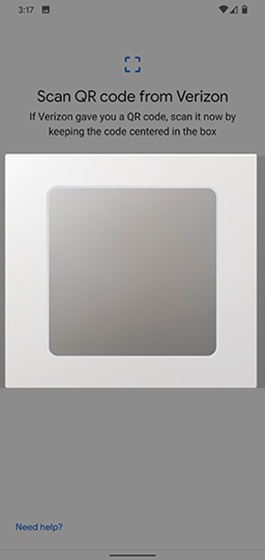
- Scan the provided QR code using your Pixel's camera (Pixel 8 / 8 Pro doesn't require a QR code).Non-Verizon branded (BYOD) Prepaid devices don't support eSIM activation.The QR code is sent via email.The Enter Details Manually option isn't supported at this time.
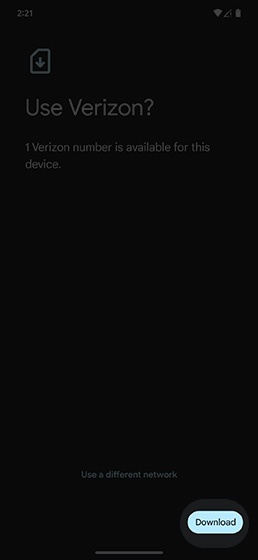
- From the 'Use Verizon?' screen, selectDownload.
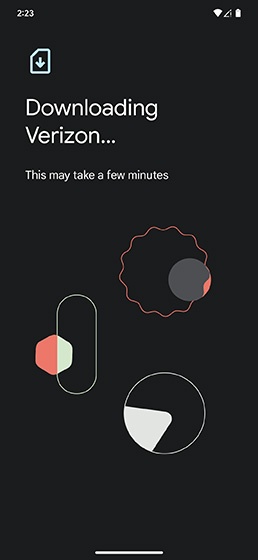
- Wait for the device to display the 'Downloading Verizon" screen.Allow up to 5 minutes for the device to activate.
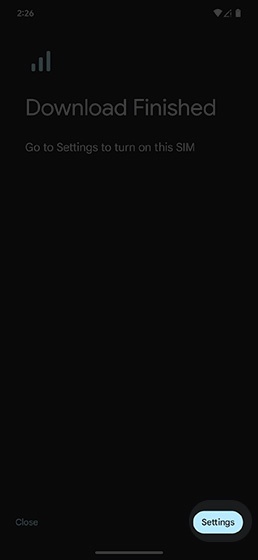
- From the 'Download Finished' screen tapSettings.
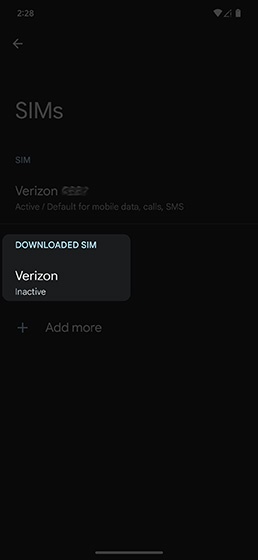
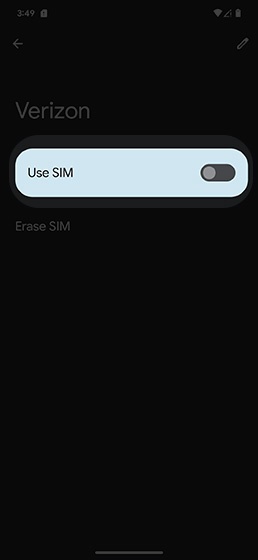
- Tap the name of the SIM you would like to use (name varies; for example Verizon eSIM).This option is only available when the physical SIM card and eSIM are activated.
- Tap theUse SIM switchto turn on
.
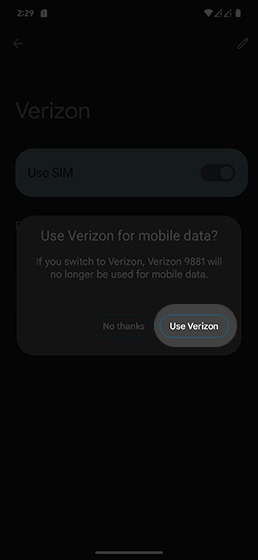
- TapYesthen tapUse Verizonto confirm.