Digital Secure App (Apple iOS) - Upgrade Subscription
Here's how to upgrade your subscription for the Digital Secure app your Android device.
Upgrading to the Premium service includes the following for your Apple® iOS device:
- Secure VPN
- Identity Protection
- Identity Restoration
- Security Advisor
- Security Center
- Multi-device protection including:
- Android™ smartphones and tablets
- Windows® and Mac® computers
Subscribe for the First Time
- Open the Digital Secure app on your device.
- To continue, review the Terms & Conditions and app permissions needed then tapAccept.
- If prompted, review the required permissions then tapAllow permissions.
- From the 'Choose the plan that right for you' screen, select one of the following then tapActivate(at the bottom):
- Digital Secure account level
- Digital Secure line level
- Digital Secure basic
To cancel the Premium service subscription, uninstall the app.
Upgrade Subscription
If you're signed up for a single line and want to add Digital Secure to all of the eligible devices (up to 12 devices), you can change your subscription to cover your entire account by sending a download link via email or SMS.
- Open the Digital Secure app on your device.
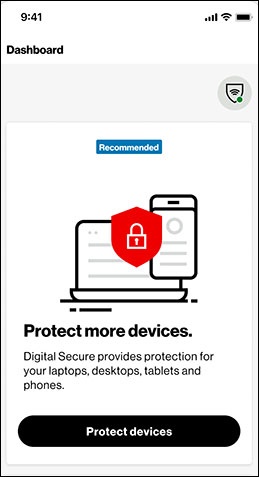
- From the Dashboard tab, scroll down to ‘Protect More Devices’ then tapProtect Devices.
- From the ‘Send a download link to protect another device’ screen, tapSend link.
- Select one of your devices messaging apps (iMessage, Gmail, etc.) to send a message with the link.
- Open the email or SMS on the device you want to protect then download Digital Secure.
To cancel the Premium service subscription, uninstall the app.