5G Home Router - Change Wi-Fi Password
Here's how to change the Wi-Fi password used to connect devices to the 5G Home Router.
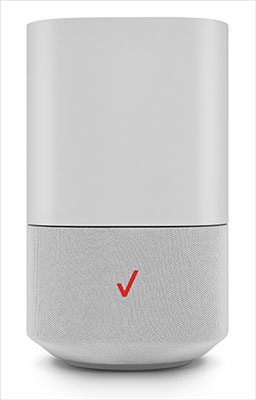
- This content is for 5G Home Internet. Here's info on Fios Home Internet.
- 5G Home Internet service is currently offered in specific areas. Here's how to check for 5G coverage availability.
You can also change the Wi-Fi name or password from your My Verizon app.
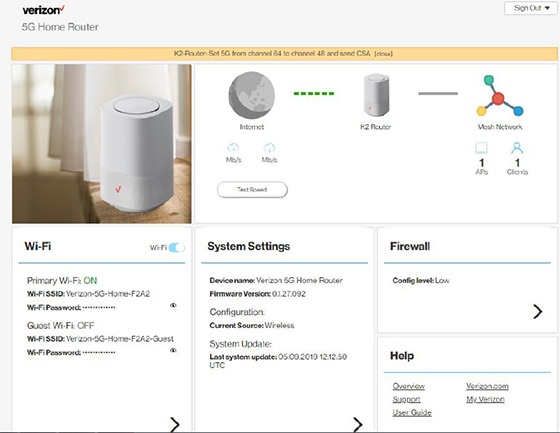
- Sign in to the Admin WebGUI.
- From the Router Home screen, clickWi-Fi.
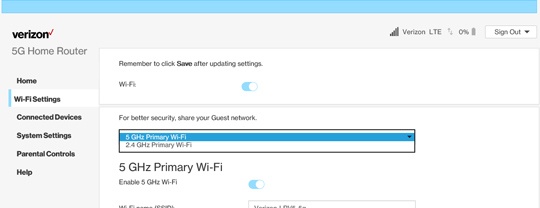
- From Wi-Fi Settings, click thePrimary Wi-Fi dropdown icon
then select one of the following to modify:
- 2.4GHz Primary Wi-Fi
- 5GHz Primary Wi-Fi
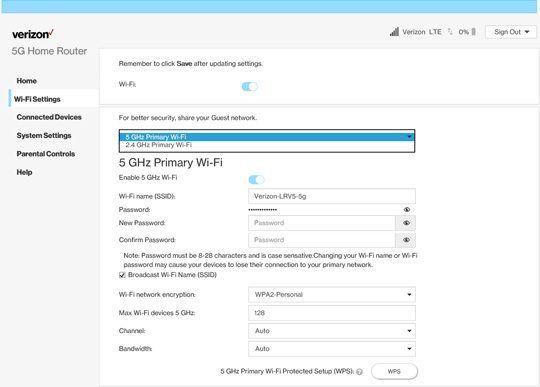
- From the 'Wi-Fi Settings' section, enter the appropriate password into the 'New Password' and 'Confirm Password' fields.Passwords can contain 8-63 alphanumeric characters and are case-sensitive.Click theView icon
to display the current password.
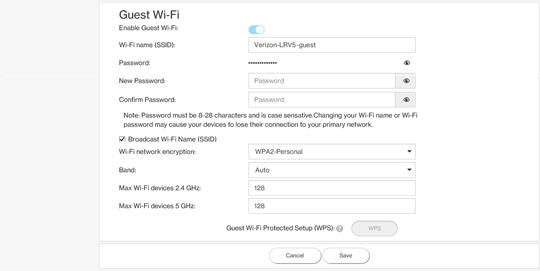
The network name (SSID) can also be changed in the 'Wi-Fi name (SSID)' field.If the Wi-Fi password is changed, the network settings on the computer must be updated. For assistance, select the appropriate operating system: - ClickSave(at the bottom).