5G Home Router - Change Guest Wi-Fi Name / Password
Here's how to change password or rename your Guest Wi-Fi network on the 5G Home Router.
- This content is for 5G Home Internet. Here's info on Fios Home Internet.
- 5G Home Internet service is currently offered in specific areas. Here's how to check for 5G coverage availability.
- Sign in to the Admin WebGUI.
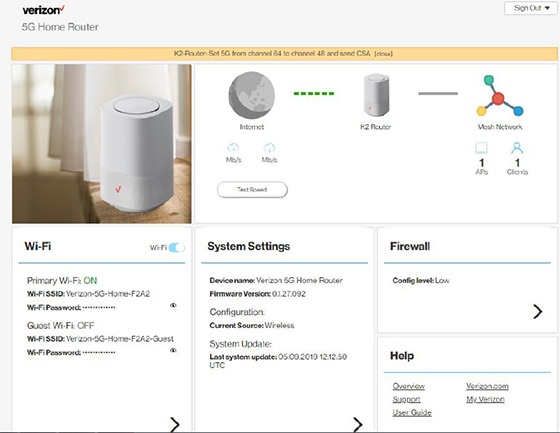
- From the Router Home screen, clickWi-Fi.
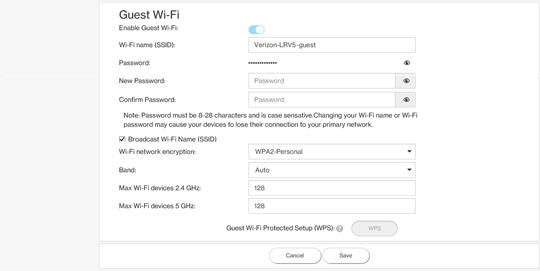
- From Wi-Fi Settings, click theEnable Guest Wi-Fi switchto turn the guest network on
or off
.
- Select any of the following to view or change security options:
- Wi-Fi name (SSID)
- PasswordPassword must be 8-28 characters and is case sensitive.Click theView icon
to display the current password.
If the Wi-Fi password is changed, the network settings on the computer must be updated. For assistance, select the appropriate operating system: - Broadcast Wi-Fi Name (SSID)Broadcast is enabled when a checkmark is present.
- Wi-Fi network encryption (i.e., None, WEP-64, WPA2-Personal, WPA-WPA2-Personal)
- Band (i.e., Auto, 20MHz, 40MHz)
- Max Wi-Fi Devices 5GHz (128)
- Max Wi-Fi Devices 2.4GHz (128)
- ClickSave(at the bottom).