One Talk - Enable / Manage Business Directory - Portal / Desk Phone
Here's how to enable, manage, and select desk phones for your One Talk Business Directory.
Refer to the One Talk admin portal simulator for interactive demonstrations.
- In order for non-One Talk lines to be added to the directory, they must first be added to the Virtual On-Net Extensions list.
- When enabled, the Business Directory feature pushes info to one or multiple desk phones in a chosen group after retrieving it from 2 different sources in the One Talk portal:
- User Info section: From the landing page, click theDetails arrow
in the 'Total lines' section.
- Virtual On-Net Extensions user feature section: From the landing page, navigate: .
- Data fields extracted from the above info sources and pushed to the desk phone(s) in the selected Group include Phone Number, First / Last Name and Extension.
- The Business Directory is a unidirectional push from the One Talk portal down to the desk phone(s).
- The Business Directory is read-only. Manual entries on the desk phone are not allowed.
- If the admin disables the feature in the Edit Group screen, all desk phones in the group lose the Business Directory.
Configure for a Single Group
- The following steps only need to be performed once for each Group. When Directory Download is enabled for the Group, you can select the desk phone(s) that receive the info from the One Talk Portal.
- When a line is moved from one Group to another, the admin must re-enable the Business Directory feature on the line in order for the desk phone to download the new group's Business Directory.
- Sign in to My Business.
- ClickManage Account.
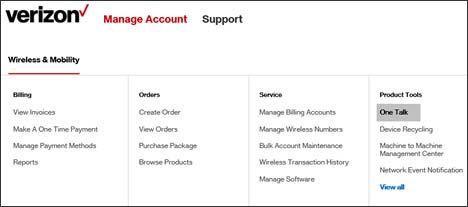
- From the Product Tools section, clickOne Talk.If necessary, clickView all.To navigate, mouse over each option.
- From the 'I want to' section, clickManage all groups.
- Click theEdit icon
next to the desired group.
- Select (check)Enable Directory DownloadandEnable it for this group onlythen clickSave(lower-right).
- ClickHome(breadcrumbs, upper-left).
- From the 'I want to' section, clickManage lines and devices.
- From the group dropdown list (upper-left), select the group which contains the number you want to enable.
- From the phone number list on the Devices tab below the group dropdown, select the appropriate phone number.
- From the device page, click theEnable directory download switchto turn on
or off
.
Configure for Multiple Groups
- The following steps only need to be performed once for each Group. When Directory Download is enabled for the Group, you can select the desk phone(s) that receive the info from the One Talk Portal.
- When a line is moved from one Group to another, the admin must re-enable the Business Directory feature on the line in order for the desk phone to download the new group's Business Directory.
- Sign in to My Business.
- ClickManage Account.
- From the Product Tools section, clickOne Talk.If necessary, clickView all.To navigate, mouse over each option.
- From the 'I want to' section, clickManage all groups.
- Click theEdit icon
- Select (check)Enable Directory DownloadandEnable it for multiple groupsthen clickSave(lower-right).
- Click theEdit iconnext to 'Enable it for multiple groups'.
- Select (check) the groups which should have directory download enabled then clickAdd(lower-right).
- From the pop-up notification, clickOKthen clickSave.
- ClickHome(breadcrumbs, upper-left).
- From the 'I want to' section, clickManage lines and devices.
- From the group dropdown list (upper-left), select the group which contains the number you want to enable.
- From the phone number list on the Devices tab below the group dropdown, select the appropriate phone number.
- From the device page, click theEnable directory download switchto turn on
Access Business Directory (Desk Phone)
Once you've enabled directory download and selected the device(s) to receive directory info, the desk phones can receive info from the One Talk portal in three ways:
- Automatically: The desk phone contacts the One Talk portal once every night to check for new info to download and present to the user.
- Upon reboot: The user can reboot the desk phone at any time; when it reboots, it contacts the One Talk portal and retrieves any pending updates in real time.
- On-demand: The user can press or tapUpdatein the Business Directory screen to retrieve any pending updates.
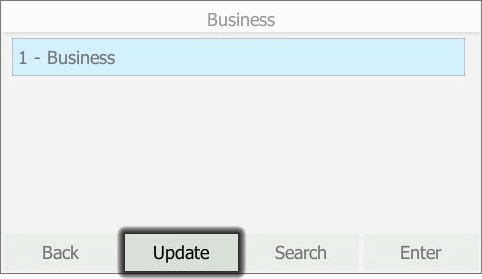
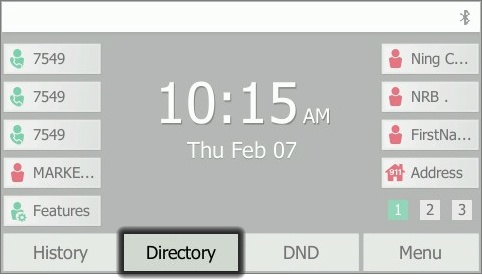
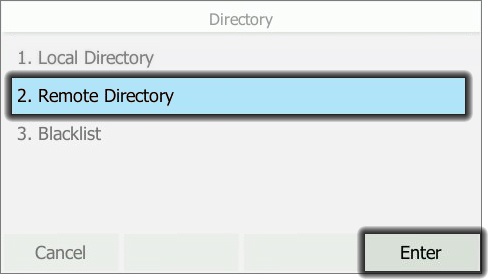
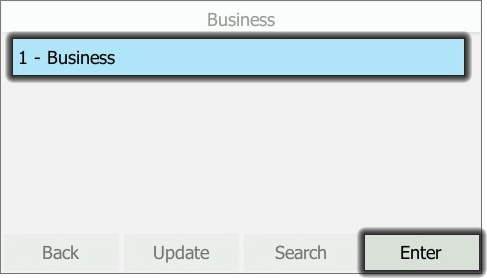
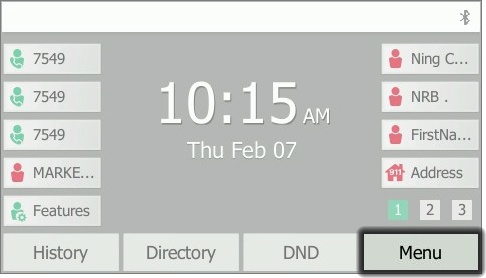
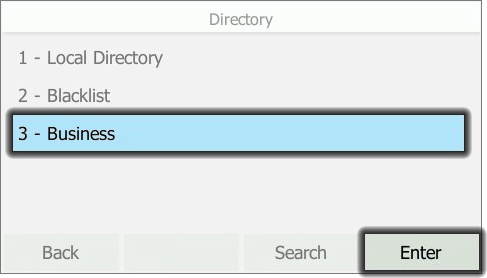
Upon retrieval of info from the One Talk portal, a new Business Directory is created in each of the selected desk phones in the enabled Group. There are two ways to access the Business Directory (the images below are examples from a T46x series desk phone):
- First method:
- From the main screen, press or tapDirectory.
- From the Directory screen, selectRemote Directorythen press or tap Enter.
- SelectBusinessthen press or tapEnter.
- Second method:
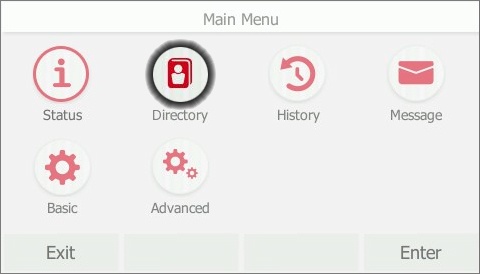
- From the main screen, press or tapMenu.
- SelectDirectory.
- SelectBusinessthen press or tapEnter.