Apple iPhone - Dual SIM with an eSIM - Switch SMS / MMS Number
Here's how to change which phone number your messages are sent from on your dual SIM capable iPhone.
If you need to switch the mobile number used for SMS / MMS on your Dual SIM with an eSIM capable Apple® iPhone®, follow these step-by-step instructions.
Prior to sending a text message to a contact using your secondary mobile number, the existing thread must be deleted.
- The steps below apply to the following Apple iPhone models:
- iPhone XS / XS Max and newer models
- iPhone SE (3rd Gen)
- You can send SMS / MMS messages using either mobile number. To switch numbers before sending a message, follow the instructions below.
- From the Home screen, tapMessages
.
If an app isn't available on your Home screen, swipe left to access the App Library. - Tap theCompose icon
(upper-right).
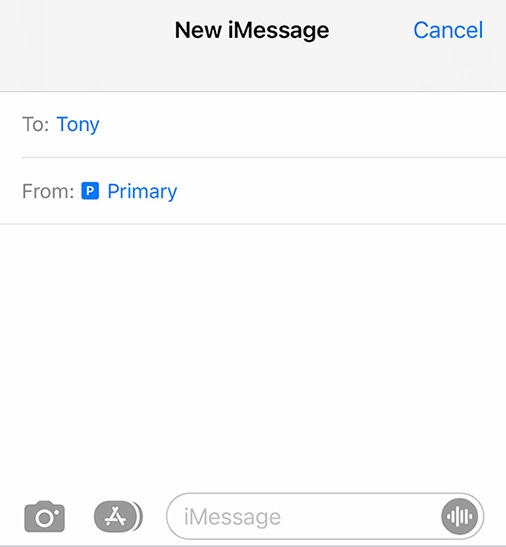
- Enter your contact's name.
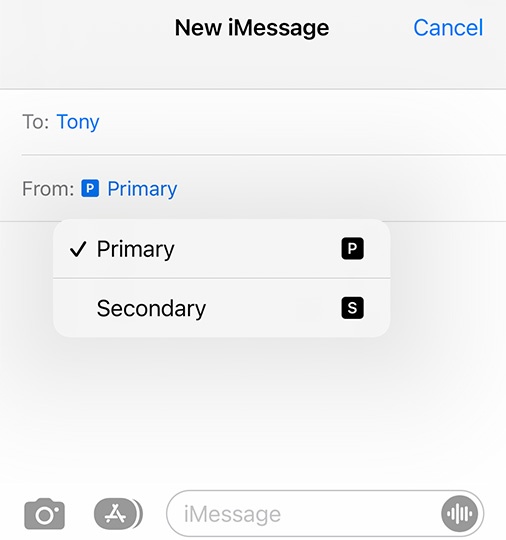
- Tap the current mobile number (e.g., Primary).This option is only available when both the physical SIM card and eSIM are activated.
- Tap the mobile number you want to use (e.g., Primary, Secondary, etc.).
For additional Dual SIM info, check out this Apple article.