One Talk Portal - View / Manage Call Forward Settings
Here's how to manage call forward settings from the One Talk web portal.
Refer to the One Talk admin portal simulator for interactive demonstrations.
Call Forward (No Answer / Busy Transfer and Always Call Forward) settings can be controlled on the Desk Phone and One Talk Mobile Client.
- Overall ring time settings can be controlled on the desk phone.
- Adjusting ring time settings in conjunction with No Answer Transfer or Busy Transfer on a desk phone changes the amount of time the desk phone rings.Example: Adjusting ring time to 3 rings results in a 15-second ring time. This can cause unwanted results for incoming calls to the One Talk phone number when called directly or transferred by an Auto Receptionist or other line type.Ring time can't be changed in the mobile app.
- Sign in to My Business.
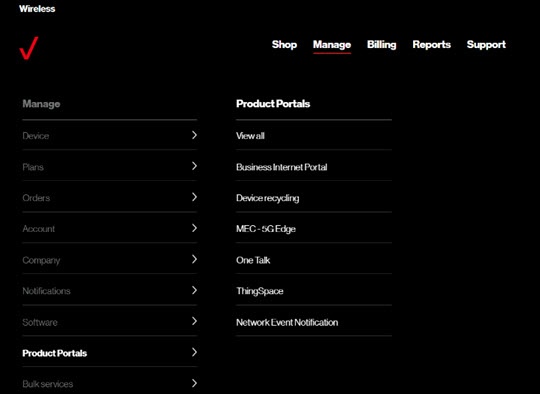
- ClickManage(top of screen).
- Mouse overProduct Portalsthen clickOne Talk.If necessary, clickView all.
- From the 'I want to' section, clickManage features.
- Click theUser Features tab.
- ClickCall Forwarding.
- Do one of the following:
- To configure Always / Busy / No Answer forwarding:
- Select the desired tab:
- Always
- Busy
- No answer
- Click theStatus switchnext to the preferred line to turn on
or off
.
- Do one of the following:
- To forward calls to Voicemail, selectVoice mail.
- To forward calls to another number:
- SelectPhone number.
- Enter the desired target number into the 'Phone number' field.
- ClickSubmit.
- To configure Selective forwarding:
- Click theSelective tab.
- Click thePlus symbol
to the left of the line for which you want to configure forwarding.
- ClickAdd new.
- SelectSpecific numbers.
- ClickSelect lines from the list.
- Select (check) the preferred lines.
- ClickSave.
- Enter the target number into the 'Forward to' field.
- Select the Active time (Always or Custom).To set a custom schedule, a schedule must first be created in the admin portal.
- ClickSubmit.