Locate an iOS Device - iCloud Website
Here's how to use Find My iPhone from the iCloud website.
- Locate a missing iOS device from another iOS device or computer.
- Find My app must be enabled on each device before use. To see all the devices when you sign in to Find My app, each device must be setup with the same iCloud® account.
- If you no longer have access to an iOS device, refer to Apple 's Find My Activation Lock for additional support.
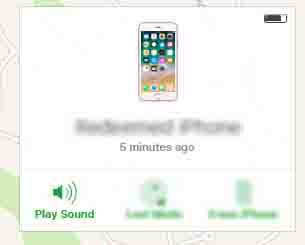
Play Sound
If a missing online iOS device is nearby, play a sound on it to assist with finding it.
- Navigate to the Find My iPhone section of icloud.com.URL: www.icloud.com/#find
- Enter the Apple ID and password then tapSign In.
- TapAll Devices(top of the screen).The dot to the left of the device's name indicates it's status:
- A blue or green dot indicates it's online.
- A gray dot indicates it's offline.
- Tap a device with an online status (blue/green dot indicator).The location of the device displays on the map.
- TapPlay Sound.A sound plays on the missing iOS device.

Lost Mode
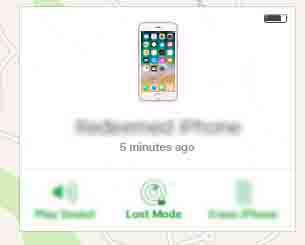
Securely lock an online iOS device and display a custom message along with a contact number. The finder of the device is able to call the contact number from the device itself.
- Navigate to the Find My iPhone section of icloud.com.URL: www.icloud.com/#find
- Enter the Apple ID and password then tapSign In.
- TapAll Devices(top of the screen).The dot to the left of the device's name indicates it's status:
- A blue or green dot indicates it's online.
- A gray dot indicates it's offline.
- Tap a device that with an online status (blue/green dot indicator).The location of the device displays on the map.
- TapLost Mode.
- Enter a contact number then tapNext.
- Enter a message to be shown on the lost device's screen then tapDone.The custom message displays on the missing iOS device.
Erase iPhone
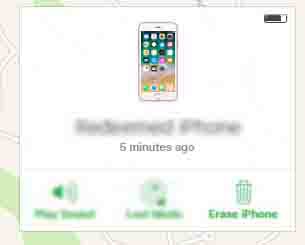
If the online iOS device is lost or stolen, it can be remotely erased, removing the personal info (e.g., contacts, email, music, etc.) and settings to prevent anyone from seeing or using the info.
- Navigate to the Find My iPhone section of icloud.com.URL: www.icloud.com/#find
- Enter the Apple ID and password then tapSign In.
- TapAll Devices(top of the screen).The dot to the left of the device's name indicates it's status:
- A blue or green dot indicates it's online.
- A gray dot indicates it's offline.
- Tap a device that with an online status (blue/green dot indicator).The location of the device displays on the map.
- TapErase iPhone.
- Review the warning then tapErase iPhone.
- Enter the Apple ID password then tapErase.All personal info and settings are erased from the missing iOS device.
Remove iPhone
If an iOS device is no longer being used, it can be removed from the Find My iPhone devices list.
- Navigate to the Find My iPhone section of icloud.com.URL: www.icloud.com/#find
- Enter the Apple ID and password then tapSign In.
- TapAll Devices(top of the screen).The dot to the left of the device's name indicates it's status:
- A blue or green dot indicates it's online.
- A gray dot indicates it's offline.
- Tap one of the offline (gray dot) devices to select it.
- TapAll Devicesagain.
- Next to the selected device, tapRemove.
- TapRemoveto confirm.The iOS device is removed from the Find My iPhone device list.
