Apple Watch - Turn Wi-Fi On / Off
Here's how to disconnect from your Apple Watch from connected Wi-Fi networks.
- The steps below apply to the Apple Watch® Series 3 and newer models.
- Your Apple Watch auto-connects to networks you have joined before that meet the 802.11b/g/n 2.4 GHz standard (i.e., not compatible with 5 GHz networks).
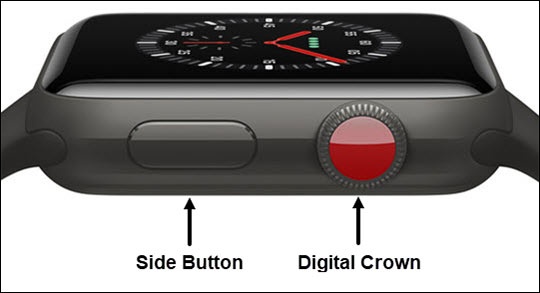
- From the Watch face screen, tap theSide Buttonto access the Control Center.If unavailable, from the Watch face screen, swipe up to access the Control Center.
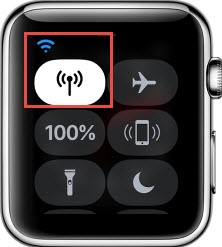
- To determine if you are connected to Wi-Fi, look for the indicator in the upper-left of the Control Center screen.The Wi-Fi icon
(upper-left) displays in place of the phone icon.
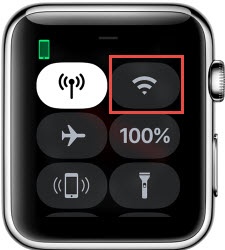
- To disconnect from Wi-Fi, tap theWi-Fi icon.The icon dims and your Watch disables all Wi-Fi connections.The Wi-Fi network disconnected from isn't rejoined unless one or more of the following takes place:
- It turns 5 am local time
- It is turned back on (by pressing the icon)
- You move to a new location
- You restart your Watch