Apple Watch - Wireless Connection Status
Here's how to view the method (Wi-Fi, cellular, etc.) your Apple Watch Series is using to connect to other devices.
- You can view how your Apple Watch® is connected (e.g., Bluetooth®, Wi-Fi, Cellular, etc.) by visiting the Control Center; refer to this wireless connections support page for more info.
- If you move out of range of your current wireless connection (e.g., Wi-Fi) while on a call, the call may drop.
- The steps below apply to the Apple Watch Series 3 and newer models.
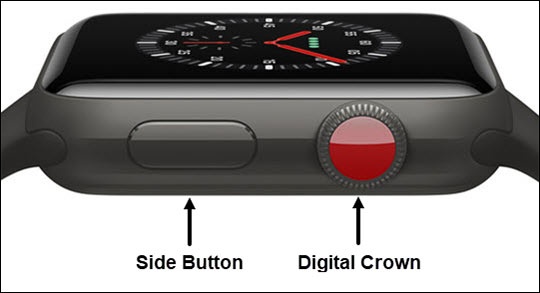
- From the Watch face screen, tap theSide Buttonto access the Control Center.If unavailable, from the Watch face screen, swipe up to access the Control Center.
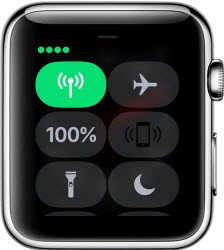
- Look for the green phone icon to see if your iPhone is connected.If not, the watch face displays 'Disconnected'
.
The Wi-Fi iconis displayed in place of the phone icon and the wireless signal icon is highlighted if you are connected to a Wi-Fi network instead of your iPhone.

- To see if you have an active cellular connection, swipe up to access the Control Center and see if the wireless signal icon is highlighted in green.The signal strength is indicated by the dots in the upper-left.