One Talk Mobile App / Native Dialer - Park / Retrieve a Call
Here's how to park and retrieve calls via the One Talk Mobile App, Enhanced Dialer or Native Dialer.
- Native Dialers and Mobile app users won't receive a notification in the app or smartphone when a call is parked to their extension or phone number.
- Native / Enhanced Dialer and mobile app users can park a call.
Mobile App
Click here for a list of supported devices.
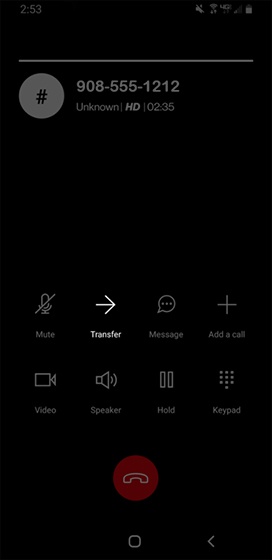
- While on a call, tapTransfer.
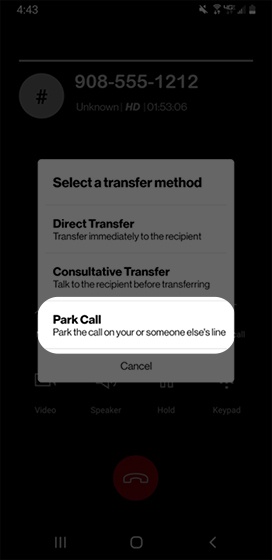
- SelectPark Callfrom the dialog box.User hears a message stating, "Please dial the number where you want to park your call followed by # or dial # to park the call against your number."
- Tap the Dialer/Keypad.
- Do one of the following:
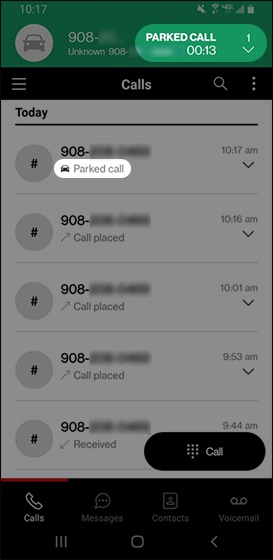
- If the app is set to 'App Dialing' under Settings > Call Features, enter the appropriate 10-digit number or the extension number followed by #.If the Call-Through option isn't available, App Dialing is the default mode.To park against your own number, tap #.Parked calls appear in the call list for the number where the call is parked.
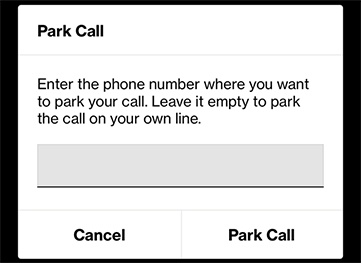
- If the app is set to 'Call-Through' under Settings > Call Features, enter the appropriate 10-digit number or the extension number followed by # then tapPark Call.To park against your own number, leave the field blank.Parked calls appear in the call list for the number where the call is parked.
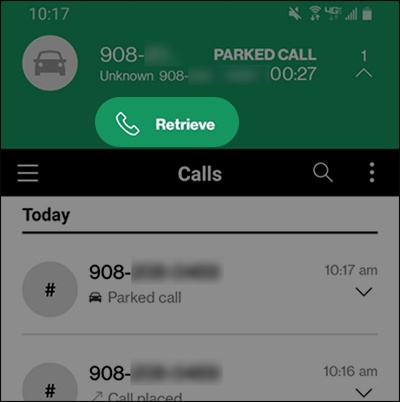
- To retrieve a parked call, tap theExpand icon
(upper-right) then tap
Retrieve.Parked call info is only displayed on the device if the call was parked against that device's number.
Native Dialer
- While on an active call, start a new call on the smartphone:
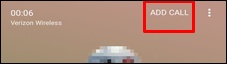
- ForAndroiddevices, tapAdd Callto start a new call.
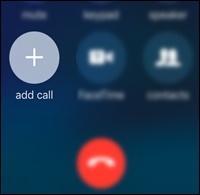
- For iOS devices, tapadd callto start a new call.
- Dial**25.User hears a message stating, "Please dial the number where you want to park your call followed by # or dial # to park the call against your number."
- Tap the Dialer/Keypad.
- Enter the appropriate 10-digit number or the extension number followed by #.
- To retrieve a parked call, dial **88 + extension or the 10-digit phone number.