Kyocera DuraXV LTE - Factory Data Reset (Powered Off)
Here's how to factory / hard reset your DuraXV LTE if the screen freezes or call, app, audio or sync issues occur and the device won't start up.
A factory data reset:
- is the last resort for troubleshooting.
- erases all data and restores preferences to factory default specifications.
- is only recommended when the existing data has been backed up or is unwanted.
- If your device is responsive and can be powered on the preferred reset method should be performed.
- Wi-Fi Calling settings don't transfer after switching devices and/or performing a factory data reset. You need to enable Wi-Fi Calling manually if you want to use it.
- While the phone is turned off, simultaneously press and hold thePWR/END keyand theVolume down buttonuntil the Kyocera logo appears.
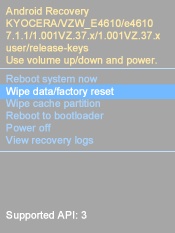
- SelectWipe data/factory reset.Utilize the 5-way navigation pad to highlight and the center button to select.
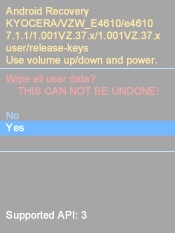
- SelectYes.
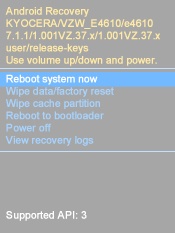
- SelectReboot system now.If applicable, set up your device.