Samsung Galaxy Note8 - Turn App Permissions On / Off
Here's how to turn app permissions for your Galaxy Note8 on or off.
App permissions give you the ability to customize and control which capabilities you give apps. You can pick and choose which permissions to grant apps at the time of use.
- Downloaded apps designed for Android 6.0 (Marshmallow) and up only ask for permission the first time you use a feature rather than asking for permissions out of context.
- Turning off certain permissions may result in basic features no longer working as intended.
- From a Home screen, swipe up or down from the center of the display to access the apps screen.These instructions only apply to Standard mode and the default Home screen layout.
- Navigate:.SettingsApps
- Ensure All apps is selected (upper-left).If necessary, tap theDropdown icon(upper-right) then selectAll apps.
- Locate then select the appropriate app.If system apps aren't visible, tap the.Menu iconShow system apps
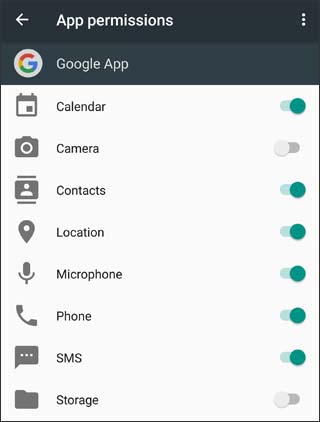
- If available, tapPermissions(App settings section).
- Select available permissions (e.g., Camera, Contacts, Location, etc.) to turn on
or off
.
If prompted, review the message then tap CANCEL or DENY.The image below is an example.