Call Filter - Apple iPhone - Enable Call Blocking & Identification
Here's how to turn on Call Blocking & Identification when using the Call Filter app on your Apple iPhone.
- Call Filter (formerly Caller Name ID) provides your Apple®iPhone® with additional caller detail (e.g., city, state, name, etc.) and enables you to manage and block spam calls.
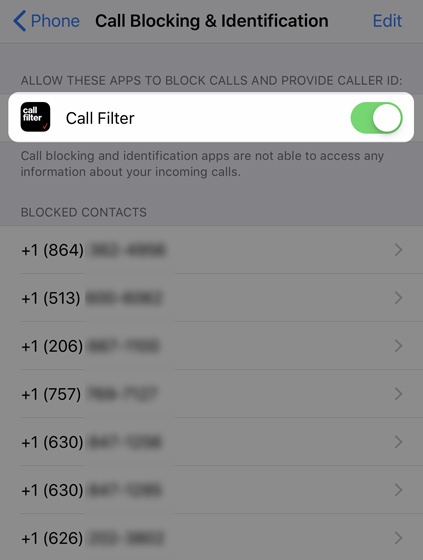
- To enable Caller ID & Block, the Call Filter switch must first be turned on.
- If the Silence Unknown Callers or Silence Junk Callers feature is turned on, calls from unknown numbers are automatically sent to Voicemail regardless of Call Filter settings.
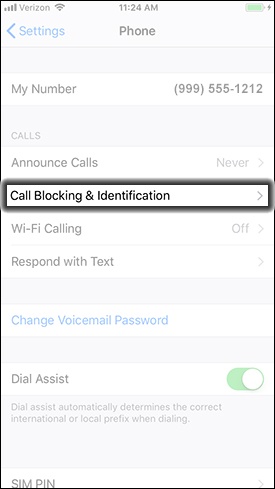
- From the Home screen, tapSettings.
- Scroll down then tapPhone.
- TapCall Blocking & Identification.
- Tap theCall Filter switchto turn on.