Transfer Content - iPhone to iPhone - Apple iCloud
Here's how to use iCloud to transfer content from one iPhone to another.
Before completing the steps below, verify:
- both devices have Wi-Fi enabled.
- both devices are in working order.
- both devices must have the same iOS version.
- Enough storage space in your Apple® iCloud® account to allow for uploading all the intended content to be transferred.
Follow these steps to restore your content (e.g., contacts, photos, music, etc.) from your old Apple iPhone® to your new Apple iPhone. If you have already backed up your old iPhone, skip to step 9.
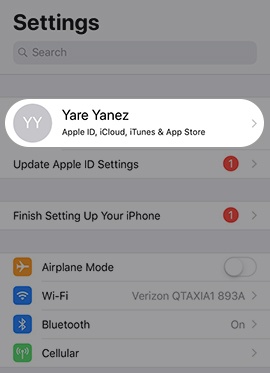
- From your old iPhone's Home screen, tapSettings.
- Tap theApple profile(e.g., John Doe) at the top of the Settings menu.
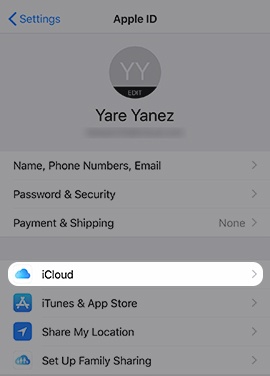
- TapiCloud.If prompted, enter the Apple ID and password then tapSign In.If you forgot your password, follow these step-by-step instructions.
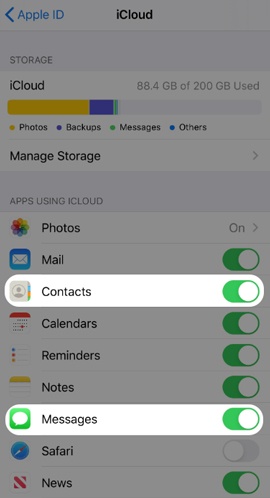
- Tap the switch(es) to turn backups for specific apps (e.g., Contacts, Messages etc.) on
or off
.
When the switch is turned off, the data is not backed up and any data already backed up to iCloud is removed. - If prompted, select one of the following:
- Keep on My iPhone
- Delete from My iPhone
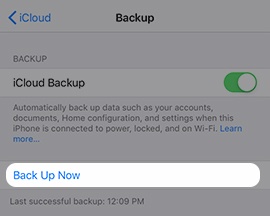
- TapiCloud Backup.
- Ensure theiCloud Backup switchis turned on
- TapBack Up Nowto immediately add or remove data from iCloud.A screen with a progress bar displays until the backup is completed.
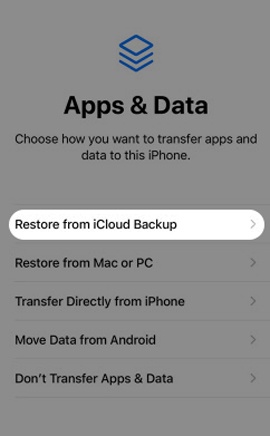
- From your new iPhone, during initial setup tapRestore from iCloud Backup.If you have already completed the initial setup on your new iPhone, erase all content and settings.
- Enter your Apple ID and password then tapNext.A verification code is sent to the device with the Apple ID in use; you must enter this code to proceed with the restore.
- To continue, review the Terms and Conditions then tapAgree.
- Tap the preferred backup file from the list displayed.
- TapContinueto restore settings from iCloud backup then follow on screen prompts.A screen with a progress bar displays until the restore completes. Time to restore content depends on the amount of data being transferred.


If any content is missing on your new iPhone, check out this Apple support page.