Digital Secure App (Android) - Manage Subscription
Here's how to subscribe to Digital Secure for the first time and how to upgrade your subscription for advanced protection using the Digital Secure app.
Upgrading to the Premium service includes:
- Secure VPN
- Identity Protection
- Identity Restoration
- Security Advisor
- Security Center
- Multi-device protection including:
- Android smartphones and tablets
- Windows® and Mac® computers
Subscribe for the First Time
- Open the Digital Secure app on your device.
- To continue, review the Terms & Conditions and app permissions needed then tapAccept.
- If prompted, review the required permissions then tapAllow permissions.
- From the 'Choose the plan that right for you' screen, select one of the following then tapActivate(at the bottom):
- Digital Secure account level
- Digital Secure line level
- Digital Secure basic
To cancel the Premium service subscription, uninstall the app.
Upgrade Subscription to Account Level
If you're signed up for a single line and want to add Digital Secure to all of the eligible devices (up to 12 devices), you can change your subscription to cover your entire account by sending a download link via email or SMS.
- Open the Digital Secure app on your device.
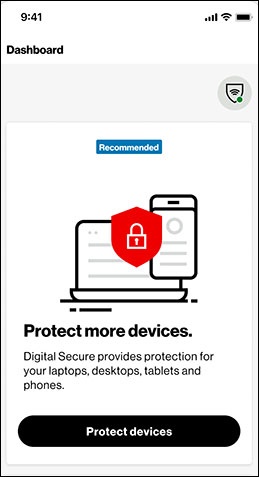
- From the Dashboard tab, scroll down to ‘Protect More Devices’ then tapProtect Devices.
- From the ‘Send a download link to protect another device’ screen, tapSend link.
- Select one of your devices messaging apps (iMessage, Gmail, etc.) to send a message with the link.
- Open the email or SMS on the device you want to protect then download Digital Secure.
To cancel the Premium service subscription, uninstall the app.