Software Upgrade / Repair Assistant (Motorola) - Software Update
Here's how to use the Software Upgrade Assistant to update the software on your Motorola device made after 8/20/2013.
This helps you update the software on your Motorola device using your PC or Mac, in the event an Over-the-Air (OTA) software update fails.
- To perform the steps below, a data cable or adapter is required and may not be included in-box for all devices.A data cable can be purchased from any Verizon Wireless retail store or at the online store.
- Ensure the wireless device is powered on, unlocked (if device lock-enabled), and connected to a computer using a compatible USB cable.
- The most recent software version becomes available on the SUA/SRA tool within a week of a new software update. During this time, the SUA/SRA is unavailable for usage.
- Use this info for devices manufactured after 8/20/2013. For older Motorola devices, refer to Software Update - Software Upgrade Assistant or Software Repair Assistant.
The software update process may take up to 30-90 minutes. Do not disconnect the device from the computer during the upgrade process.
Windows®
The following steps are used when the auto-update check is enabled.
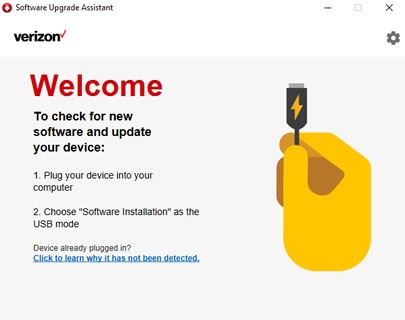
- Ensure the Software Upgrade Assistant (SUA) software is installed.Refer to Initial Setup - Software Upgrade / Repair Assistant for assistance.
- Ensure the wireless device is powered on, unlocked, and connected to a computer using a compatible USB cable.
- From the device, swipe down on the status bar (located at the top), tap the USB connection entry, then tapSoftware Installation mode.
- If an update is available, a pop-up is presented on the taskbar. Click the pop-up to launch the SUA.If the pop-up doesn't appear, right-click theSoftware Upgrade Assistant tray icon
to launch the Software Upgrade Assistant tool.
Images may vary depending upon device and operating system. - From the SUA, clickUPDATE SOFTWARE(located on the lower-right).
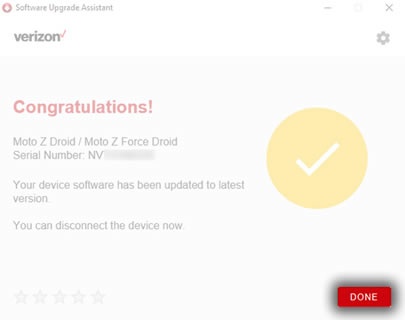
- When the software upgrade process has completed, clickDone(lower-right) and disconnect your device.
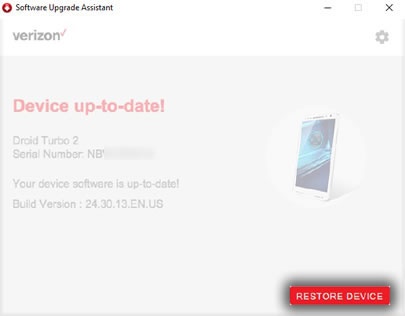
- If the update fails to install or the device is up-to-date, clickRESTORE DEVICE.
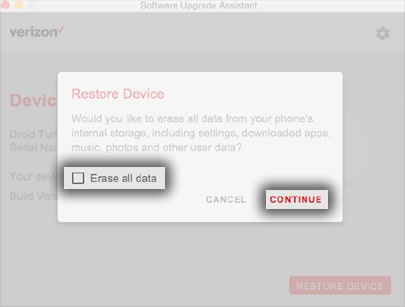
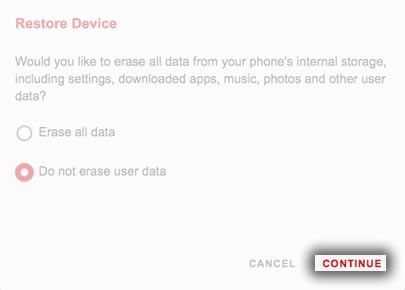
- On the Restore Device screen, select whether to erase or keep the device data then clickCONTINUE.
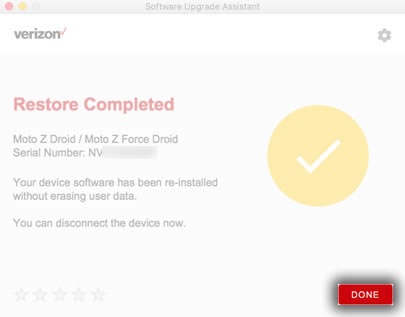
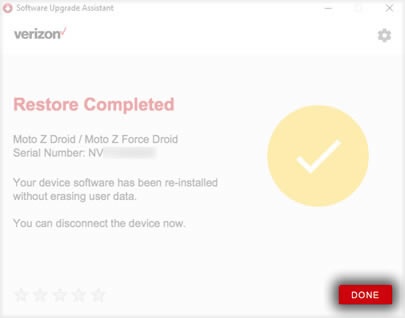
- When the restoration process is complete, clickDoneand disconnect your device.


Macintosh®
The following steps are used when the auto-update check is enabled.
- Ensure the Software Upgrade Assistant (SUA) software is installed.Refer to Initial Setup - Software Upgrade / Repair Assistant for assistance.
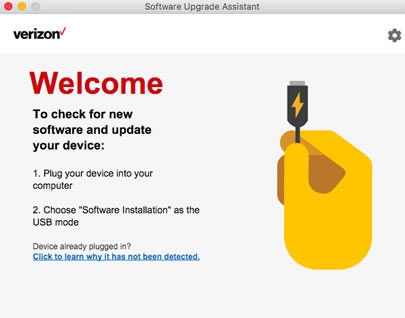
- Ensure the wireless device is powered on, unlocked, and connected to a computer using a compatible USB cable.
- From the device, swipe down on the status bar (located at the top), tap the USB connection entry, then tapSoftware Installation mode.The SUA opens and checks for updates.
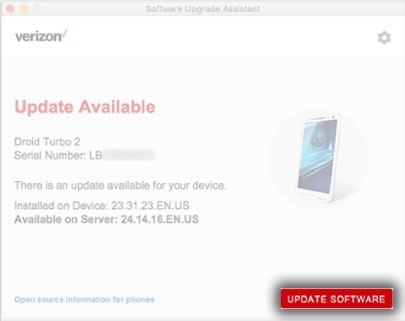
- From the SUA, clickUPDATE SOFTWARE(located on the lower-right).Images may vary depending upon device and operating system.
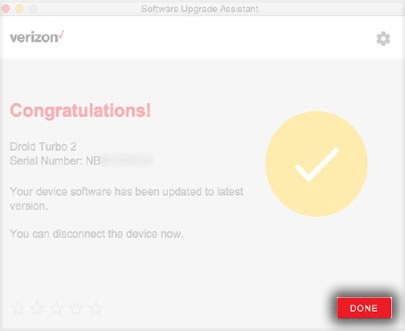
- When the software upgrade process has completed, clickDone(lower-right).
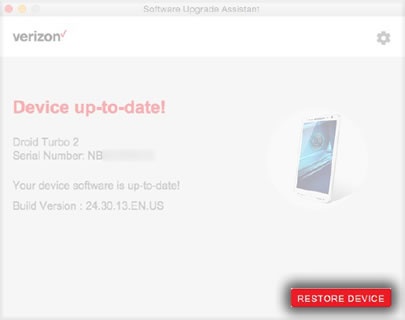
- If the update fails to install or the device is up-to-date, clickRESTORE DEVICE.
- On the Restore Device screen, select whether to erase or keep the device data then clickCONTINUE.
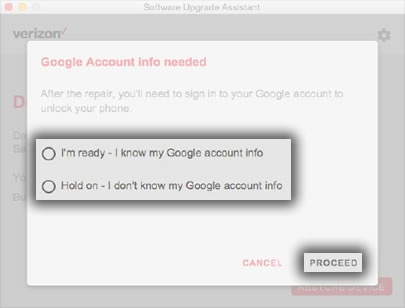
- On the Google Account info needed screen, select the appropriate option then clickPROCEED.If "Hold on..." is selected, the SUA gives instructions on how to remove the Google account from the device.
- When the restoration process is complete, clickDoneand disconnect your device.