Software Upgrade / Repair Assistant (Motorola) - Initial Setup
Here's how to install the Software Upgrade Assistant on your computer for use with Motorola devices made after 8/20/2013 and prepaid devices.
- This shows you how to install the Motorola Upgrade Assistant on your PC or Mac if the Over the Air upgrade option on your phone fails.
- If the update fails to install, refer to the Software Update - Software Upgrade / Repair Assistant for assistance.
- The most recent phone software is available on the SUA/SRA tool a week after a new software update. During this time, the SUA/SRA is unavailable.
- Use this information for devices manufactured after 8/20/2013. For older Motorola devices, refer to Initial Setup - Software Upgrade Assistant.
System requirements:
- Windows 7 and later or Mac OS 10.6 and later versions.
- Up to 5GB of available computer storage (to store the Update File), USB cable and Internet connection.
Windows®
- Turn your phone on, unlock it and connect it to your PC using a USB cable. An AutoPlay pop-up should open automatically on the computer.Once connected, if available, ensure the CD-ROM feature is enabled on the device.If Autoplay doesn't pop up, the software can be downloaded at www.motorola.com/verizonsoftwareupdatewin.
- From the device, swipe down on the status bar (located at the top).
- Tap the USB connection entry.
- TapSoftware Installation mode.
- From the AutoPlay pop up window, clickInstall Verizon Software Upgrade Assistant for Motorola.If the AutoPlay pop up window is not available, open Windows Explorer then clickCD Drive Installerand double-click thesetup.exefile to launch.Once the download process is complete, the Assistant checks for software updates.
- ClickYesto download and install the Software Upgrade Assistant.
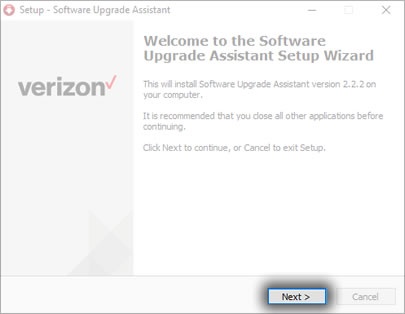
- On the Welcome screen, clickNext
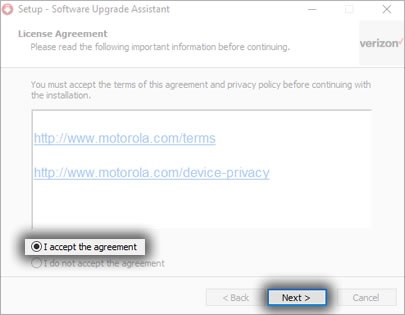
- To continue, review Terms and Conditions, clickI accept the agreementthen clickNext.
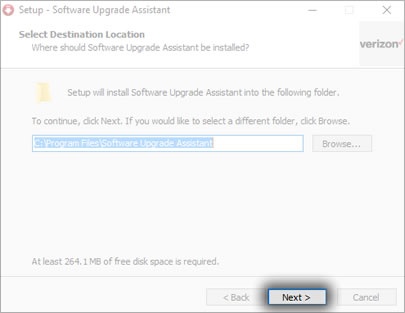
- On the Select Destination Location screen, select the desired location or leave it as is and then clickNext.
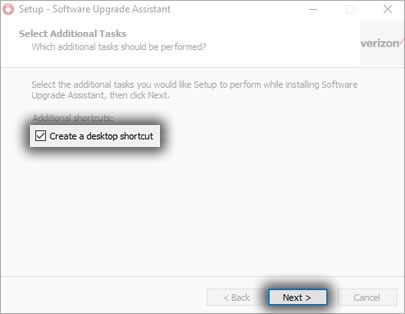
- On the Select Additional Tasks screen, click the Create a desktop shortcut checkbox if desired, then clickNext.
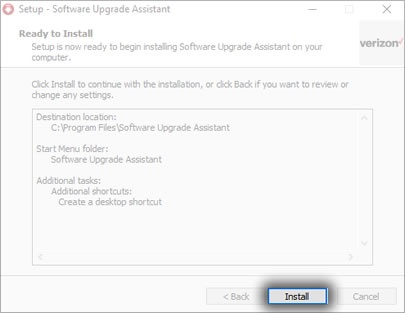
- On the Ready to Install screen, clickInstall.
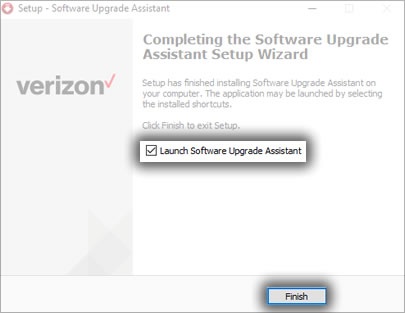
- When the installation process is complete, click the "Launch Software Upgrade Assistant" checkbox then clickFinish.
- The Software Update - Software Upgrade / Repair Assistant launches automatically. Follow the instructions to complete the software update.
Macintosh®
- Turn your phone on, unlock it and connect it to your PC using a USB cable. An AutoPlay pop-up should open automatically on the computer.Once connected, if available, ensure the CD-ROM feature is enabled on the device.If Autoplay doesn't pop up, the software can be downloaded at www.motorola.com/verizonsoftwareupdatemac.
- From the device, swipe down on the status bar (located at the top).
- Tap the USB connection entry.
- TapSoftware Installation mode.
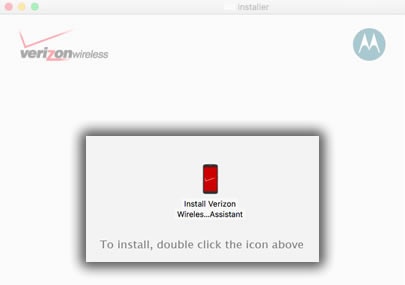
- From the Installer screen, double-click theInstall Verizon Wireless...Assistant icon.
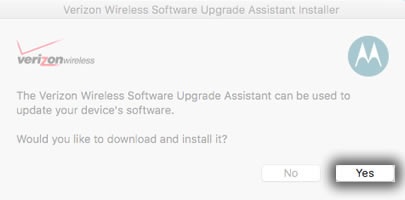
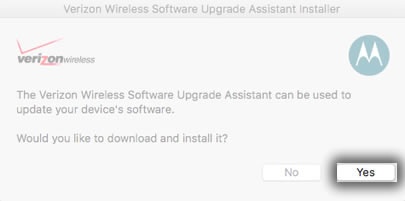
- ClickYesto download and install the Software Upgrade Assistant..
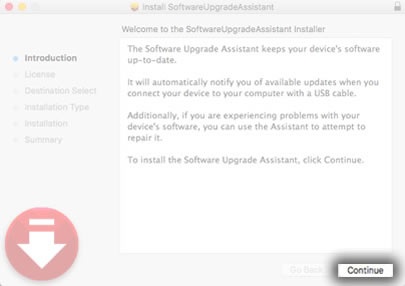
- On the Introduction screen, clickContinue.
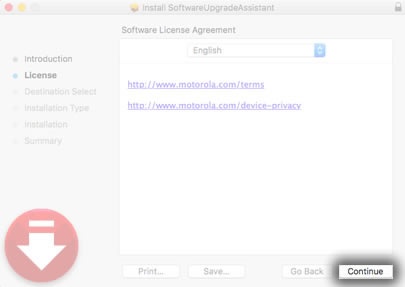
- Review the Terms and Conditions then clickContinue.
- On the Installation Type screen, clickInstall.If a password is setup on the computer, enter the password then clickInstall Software.
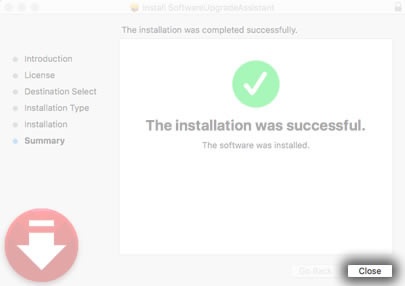
- When the installation process is complete, clickClose.
- The Software Update - Software Upgrade / Repair Assistant launches automatically. Follow the instructions to complete the software update.