Session status messages
Session Status

Due to inactivity, your session will end in approximately 2 minutes. Extend your session by clicking OK below.

Due to inactivity, your session has expired. Please sign in again to continue.

Apple iPhone - Turn Wi-Fi Calling On / Off

2026-10-22 16:04:02.819

Apple iPhone - Turn Wi-Fi Calling On / Off

When turned on, Wi-Fi Calling may improve indoor call quality for your iPhone.
When turned on, Wi-Fi Calling may improve call quality while indoors.
  • For Wi-Fi Calling to work, verify:
    • HD Voice has been activated while in the Verizon wireless coverage area.
      Can't be activated internationally.
    • Wi-Fi Calling has been activated on the Verizon wireless network.
    • Wi-Fi is turned on and connected.
  1. From a Home screen on your Apple® iPhone®, navigate:
    Settings Settings icon
    Cellular
    .
    If unavailable, swipe left to access the App Library.
    If using an eSIM with a second line, select a line (e.g., Primary, Secondary, 888-888-8888, etc.) then proceed to step 2.
  2. Tap
    Wi-Fi Calling
    .
    Wi-Fi Calling Settings
  3. Tap the
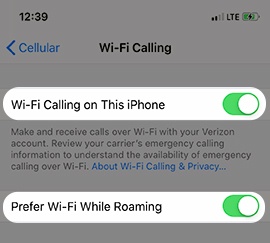
    Wi-Fi calling on This iPhone switch
    to turn on On Switch or off Off Switch.
    If present, tap the
    Prefer Wi-Fi While Roaming switch
    to turn on or off.
    Wi-Fi Calling Switch
For additional info, check out these Wi-Fi Calling FAQs.