Apple iPhone - Sign In / Out with Apple ID
Here's how sign in / out with your Apple ID on your iPhone. Your Apple ID is needed to use the App Store, Apple Music, FaceTime, iMessage and more.
- Your Apple ID is the account used to access Apple services such as the App Store®, Apple Music®, FaceTime®, iCloud®, iMessage® and more.
- An Apple ID can be created using your device or by visiting the Create Your Apple ID website from a computer.
Sign In
- From a Home screen on your Apple® iPhone®, tapSettings
.
If an app isn't available on your Home screen, swipe left to access the App Library. - TapSign in to your iPhone.
- Enter your Apple ID and password.
- If prompted, enter the six-digit verification code sent to your trusted device or phone number and complete to sign in.If needed, refer to if you forgot your Apple ID or password for assistance resetting your password.
Sign Out
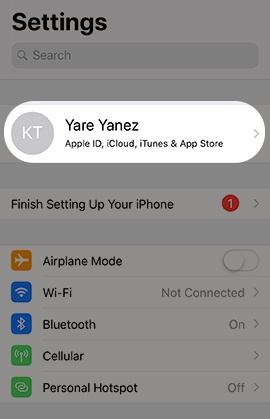
- From a Home screen, tapSettingsIf an app isn't available on your Home screen, swipe left to access the App Library.
- Tap yourApple profileat the top of the Settings menu.
- TapSign Out(may require scrolling).
- Enter the Apple ID password then tapTurn Off.
- To keep a copy of data, tap the applicable switches to turn on
or off
.
- TapSign Out(upper-right) thenSign outfrom the prompt to confirm.