One Talk - View / Manage Automated Receptionist
Here's how to view / manage the automated receptionist feature via the My Verizon for Business app.
Refer to the One Talk admin portal simulator for interactive demonstrations.
- Incoming callers are presented with a greeting and a set of options to choose from (e.g., Press 1 for Sales, etc.) then routed to the selection made. Different options can be made available depending on the Schedule (Business Hours, After Hours, Holiday).
- The # key is hard set to 'Transfer to Operator' to allow non-HD Voice calls to be routed correctly. When configuring One Talk Automated Receptionist call routing, the 0 key must be changed to a different option other than 'Transfer to Operator' (Example: You want 0 to transfer to an agent in the office. Change this key to 'Transfer without Prompt' and have the recording state "Press 0 for an operator").
The Automated Receptionist can be managed via the One Talk portal or the My Verizon for Business mobile app.
One Talk Web Portal
In order to upload an audio file, it must meet the following criteria:
- .WAV file type
- CITT, u-law, or a-law codec
- 8.000 kHz (sampling rate/frequency)
- 8-bit mono
- 2MB or less total size (7 minutes or shorter)
- Sign in to My Business.
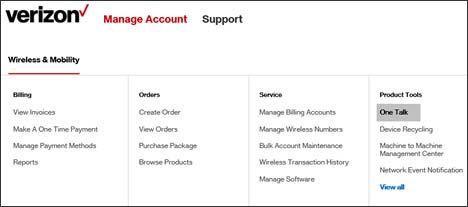
- ClickManage Account.
- From the Product Tools section, clickOne Talk.If necessary, clickView all.To navigate, mouse over each option.
- From the 'I want to' section, clickManage features.
- From the Business Features tab, clickAutomated Receptionist.
- Click the appropriate Automated Receptionist phone number.If none are listed, you can purchase an Automated Receptionist.
- In the 'Setup Automated Receptionist' section, selectUpload custom greeting.Custom greetings can be set on both the 'Business hours' and 'After hours and Holidays' tabs.
- ClickUpload.If a greeting already exists, clickReplace Existing.
- Navigate to the desired location, click the preferred file then clickOpen.
- ClickSave(upper-right).
My Verizon for Business
- Open and sign in to the My Verizon for Business app.
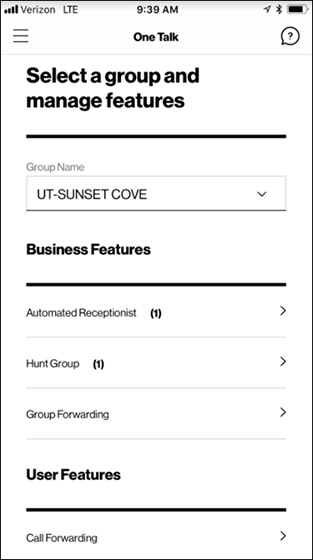
- TapOne Talkon the home screen.
- Select the group you want to view or edit then tap theright arrow
next to Automated Receptionist.
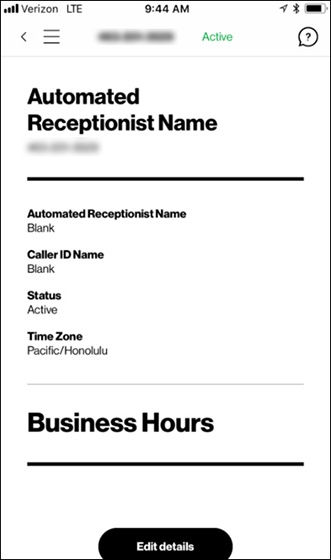
If there is more than one Automated Receptionist (AR) on the account, select the appropriate AR. - After selecting the AR, tapEdit detailsat the bottom of the review page.
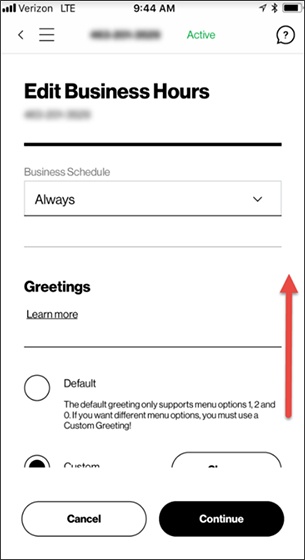
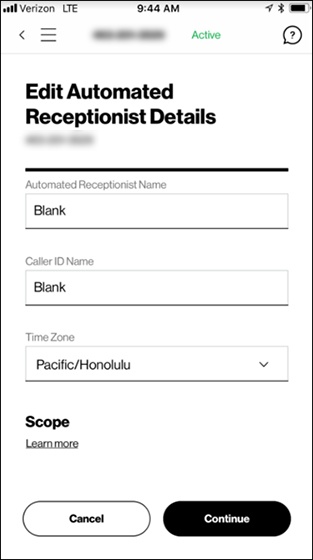
- Adjust the following settings as preferred then tapContinue:
- Automated Receptionist Name
- Caller ID Name
- Time Zone
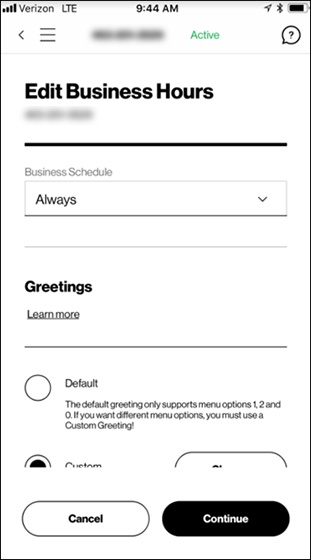
- On the next screen, adjust the following settings then tapContinue:
- Business Schedule
- Greetings
Upload Greeting (Android™)
In order to create a custom greeting within the My Verizon for Business app, use
Broadsoft Recorder
(available in the Play Store) or a similar audio recording app to record your greeting. The resulting audio file must meet the following criteria:- .WAV file type
- CITT, u-law, or a-law codec
- 8.000 kHz (sampling rate/frequency)
- 8-bit mono
- 2MB or less total size (7 minutes or shorter)
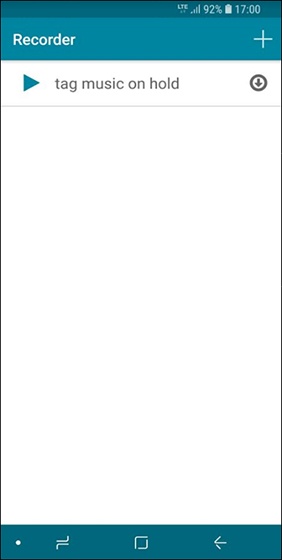
- Open Broadsoft Recorder to view the Home screen.
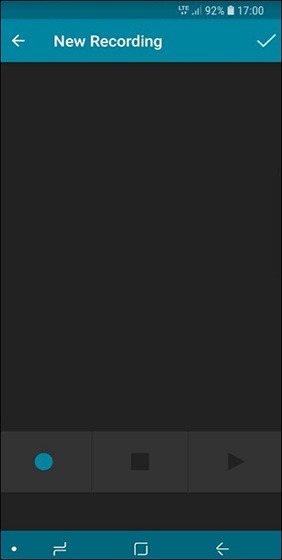
- Tap thePlus icon +(upper-right) to create a new recording.
- Tap theblue Circle iconto start recording.
- When finished recording, tap theSquare iconto stop then tap theCheck icon(upper-right) to save the file.
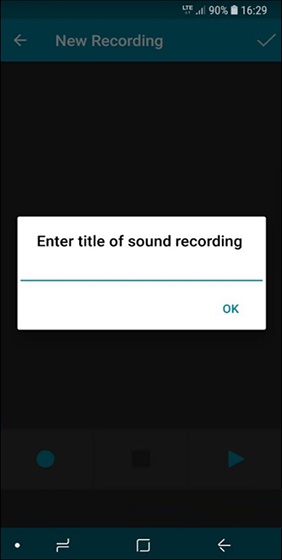
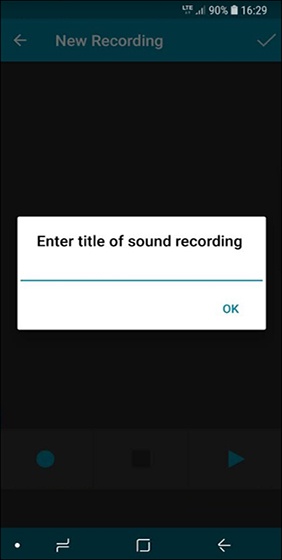
- Enter a title then tapOK.
- Return to the Greetings section of the My Verizon for Business app (step 6 in 'My Verizon for Business' above).
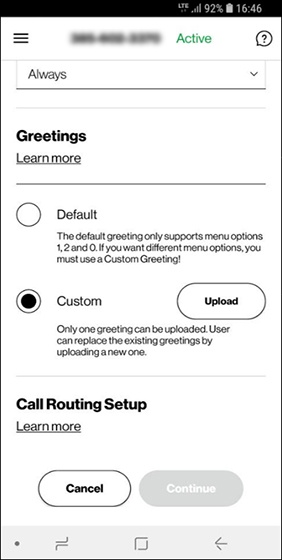
- SelectCustomthen tapUpload.After uploading an audio file, 'Upload' is replaced by a 'Change' button.
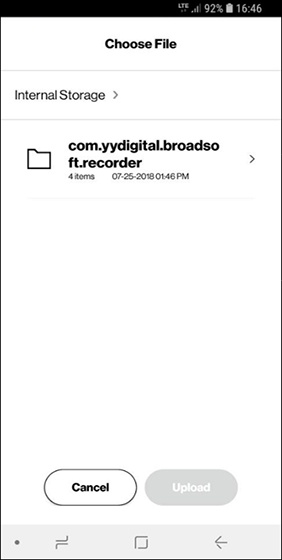
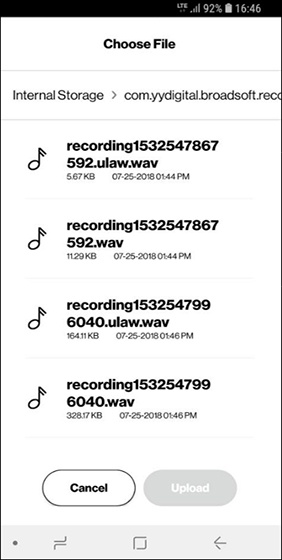
- On the next screen, navigate to the folder where your recorded audio file is stored.
- Select the file you wish to assign for your greeting then tapUpload.
Upload Greeting (iOS)
In order to create a custom greeting within the My Verizon for Business app, use
Broadsoft Recorder
(available in the App Store) or a similar audio recording app to record your greeting. The resulting audio file must meet the following criteria:- .WAV file type
- CITT, u-law, or a-law codec
- 8.000 kHz (sampling rate/frequency)
- 8-bit mono
- 2MB or less total size (7 minutes or shorter)
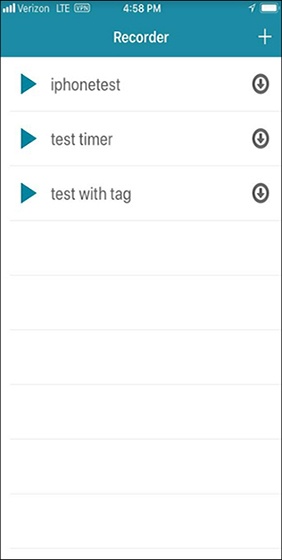
- Open Broadsoft Recorder to view the Home screen.
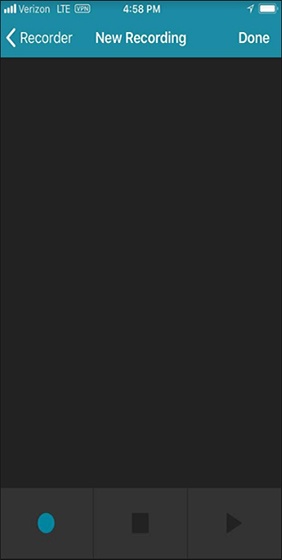
- Tap thePlus icon +(upper-right) to create a new recording.
- Tap theblue Circle iconto start recording.
- When finished recording, tap theSquare iconto stop then tapDone(upper-right) to save the file.
- Enter a title then tapOK.
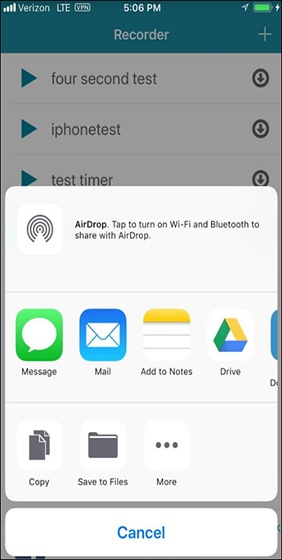
- TapSave to Files.
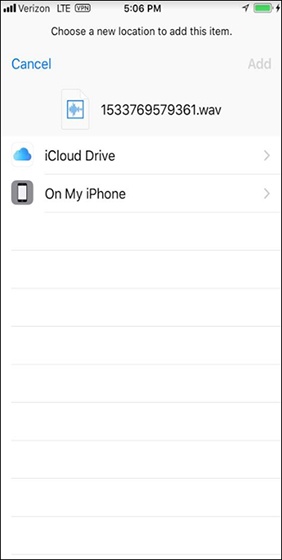
- A new window opens offering locations to which you can save the file. The recommended location to save files for use with the My Verizon for Business app is iCloud Drive.
- TapAdd(upper-right).
- Return to the Greetings section of the My Verizon for Business app (step 6 in 'My Verizon for Business' above).
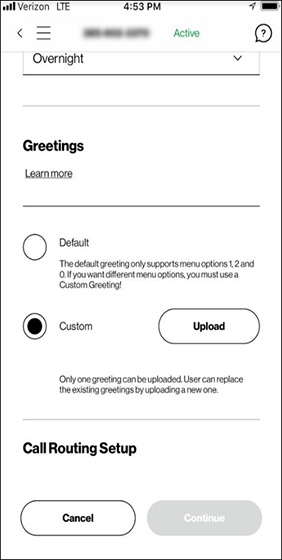
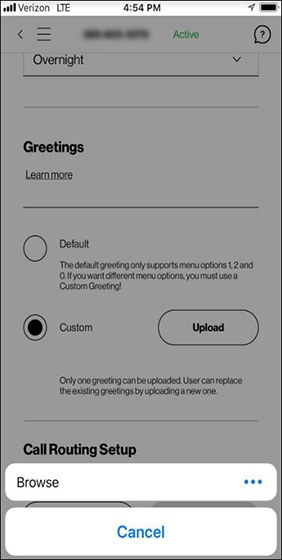
- SelectCustomthen tapUpload.After uploading an audio file, 'Upload' is replaced by a 'Change' button.
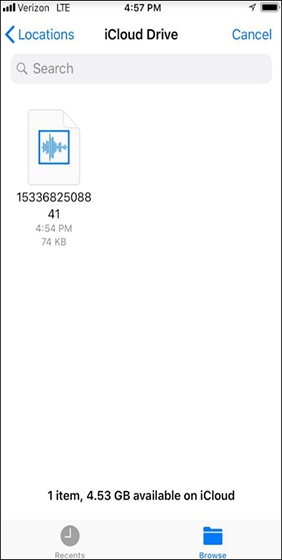
- On the next screen, tapBrowse.
- Navigate to the location where your recorded audio file is stored then select the desired file.
- TapUpload(lower-right).
Call Routing
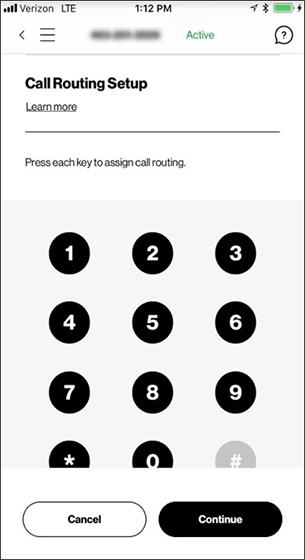
- From the One Talk screen in the My Verizon for Business app, scroll to the 'Call Routing Setup' section.
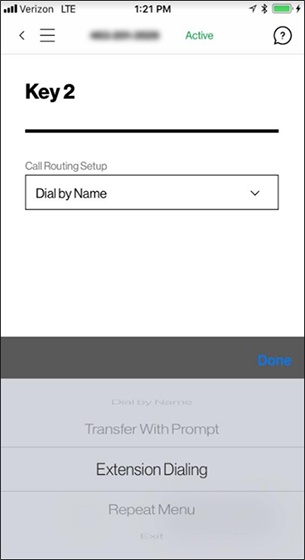
- Tap each number on the screen to assign that key to a function.
- Tap an option to assign that function to the key you pressed in the previous step (e.g., Transfer With Prompt, Extension Dialing, etc.) then tapDone.