Windows 10 - Add a Microsoft Account
Here's how to add a Microsoft account using Windows 10.
- If your device isn't running Windows® 10, refer to the Windows 8 instructions.
- The following steps only apply if you signed in without a Microsoft® account during the initial setup of your device and have an existing account to use.
- If you don't have an existing account, you can create one.
- The first Microsoft account to sign in is designated as the owner of the device. Any subsequent Microsoft accounts that are used to sign in won't have owner privileges (the ability to change or modify users, etc.).
- From the Windows desktop, navigate:.StartSettings icon
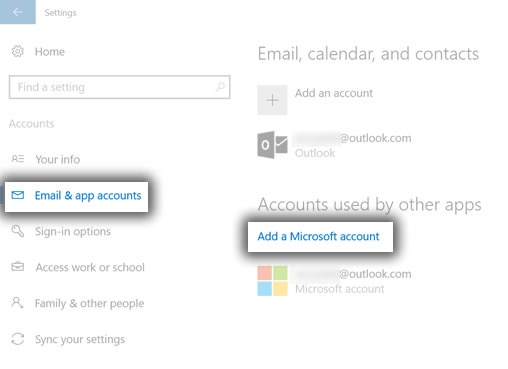
- SelectEmail & app accountsthen selectAdd a Microsoft account.
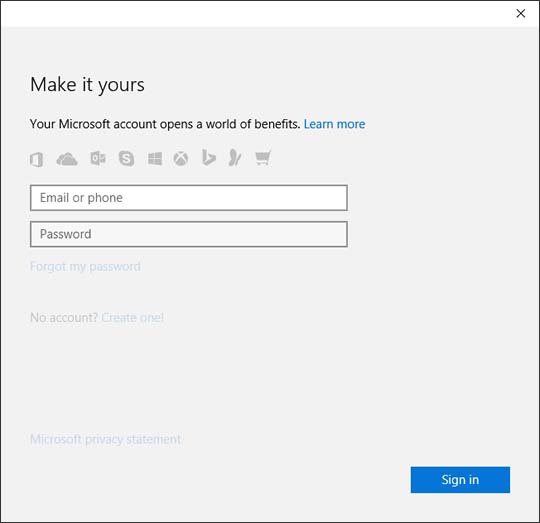
- Enter the email address or phone number and password then selectSign in(lower-right).If presented with a "Something went wrong" screen, ensure that you are connected to the internet then selectRetry.
- If applicable, follow remaining on-screen prompts to switch to a Microsoft account.You may need to verify your identity by entering a confirmation code. For further assistance, contact Microsoft.