Samsung Galaxy S7 / S7 edge - Activate / Set Up Device
Here's how to activate and setup your Galaxy S7 / S7 edge.
If you need to transfer contacts and media from one device to another, follow these step-by-step instructions before activating the new device.
To avoid potential issues, review the following:
- For more info on prepaid service activation, refer to Set up Verizon Prepaid Service.
- Accounts (e.g., Gmail, email, etc.) should be set up after activating the device (see Related Info section at the bottom of this page).
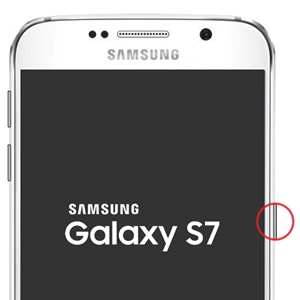
- If powered off, press and hold thePower buttonuntil the Samsung Galaxy S7 screen appears then release.
- From the Start screen, select the appropriate language then tap theright Arrow icon.Allow several seconds for activation to complete.
- To continue, review the Terms and Conditions, select (check) the following then tapAGREE(lower-right) to continue:
- Agree to all
- Terms and Conditions
- Privacy Policy
- Diagnostic data
- If presented with the Phone Activation screen, tap NEXT or tap ACTIVATE NOW (if available).If prompted, enter the last 4 digits of the account owner's Social Security Number or the billing password.If activating a new phone, ensure the old phone is powered off and allow several minutes for the deactivation of the old phone to complete.
- If presented with the Verify your account screen, sign in with the Google account that was previously synced on the device, tapNEXTthen tapNo.
- From the Set up Wi-Fi screen, select and connect to the desired network or tap SKIP (lower-right).
- From the Google Sign in screen, tap .
- From the Name screen, enter a name then tapNEXT.
- From the Protect your phone screen, selectNo, thank youthen tap .
- From the Google services screen, select any of the following to turn on
or off
then tap
AGREE(scroll to the bottom).- Help apps find location
- Improve location accuracy
- Send system data
- From the Verizon Cloud screen, tapSKIP(at the bottom) then tapNOT NOW(lower-left).
- From the Email setup screen, tapSKIP(lower-right).
- From the Digital Secure screen, tapSKIP.
- From the Personalize your phone screen, tapSKIP.
- From the Ready to go screen, tapGOT IT(lower-right).