Find My Device - Android™ - Remotely Lock Device
Here's how to use Find My Device to remotely locate and lock your device.
- This process only applies when the Find My Device option has been turned on.
- This process doesn't apply when additional security features (e.g., Microsoft Exchange, Remote Wipe apps, etc.) have been set up.
- Use the existing Gmail™ credentials to access the Find My Device page from a computer.
- If Gmail credentials are forgotten, refer to Recover Gmail Sign-in Information.
- Sign in to the Find My Device page (URL: google.com/android/find).
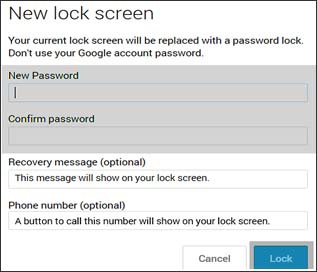
- ClickLock.After remotely locking the device, a new lock screen password must be set.
- Enter then confirm the new password.
- ClickLock(lower-right).
For additional info, check out this Find My Device support page.