Initial Set Up - Apple Pay®
Here's how to set up Apple Pay.
Contact your respective financial institution for questions/issues related to: declined payments, making credit card payments, disputing charges or payments, canceling a card, reporting a card lost or stolen and requesting or replacing an ATM/Debit card.
- Apple Pay lets you make purchases in stores with contactless payment technology, and in supported apps using unique security features built into the iPhone 6, iPhone 6 Plus, iPad Air 2 and iPad mini 3 with software version iOS 8.1 and later.
- Apple Pay works with most of the major credit and debit cards from the top U.S. banks. For a list of participating issuers refer to to Apple Pay participating issuers.
- Apple Pay works with Touh ID or Face ID. Refer to Touch ID Setup or Face ID Setup (as applicable) for assistance.
- For information on security and privacy, refer to Apple Pay Security and Privacy Overview.
- Refer to Apple Pay FAQ for frequently asked questions.
Use Card on File with iTunes
- From the Home screen, tapWallet.
- TapAdd Credit or Debit Card.If prompted, enter the Apple ID password then tapOK.
- TapUse Card on File with iTunes.
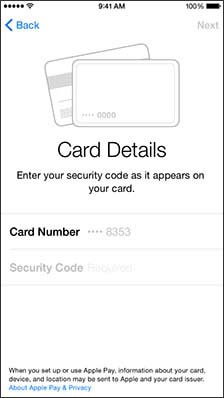
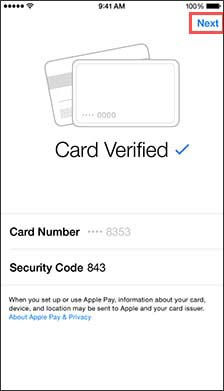
- Verify the card number.For security reasons, only the last four numbers of the card number are shown on the screen.
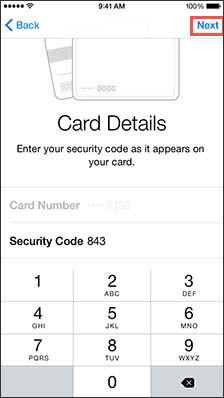
- TapSecurity Code.
- Enter the card security code then tapNext.
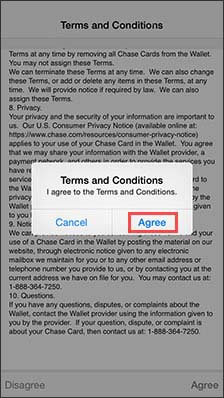
- To continue, review the Terms and Conditions then tapAgree.
- TapAgree.
- Once the card verification process has completed, tapNext.


Use a Different Debit Card or Add a New Credit/Debit Card
- From the Home screen, tapWallet.
- TapAdd Credit or Debit Card.If prompted, enter the Apple ID password then tapOK.
- TapUse a Different Credit or Debit CardorAdd a New Card or Debit Card.
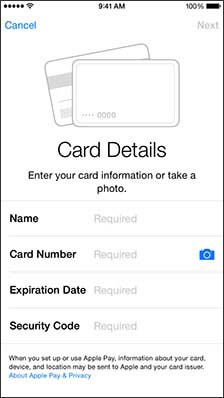
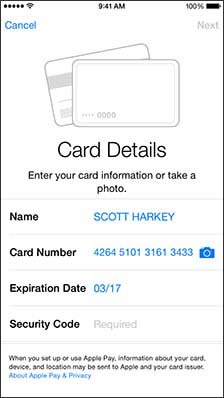
- Enter the card information in the appropriate fields:The card information is entered automatically if you tap theCamera symboland then take a picture of the card.
- Name
- Card Number
- Expiration Date
- TapSecurity Code.
- Enter the card security code then tapNext.
- To continue, review the Terms and Conditions then tapAgree.
- TapAgree.
- Once the card verification process has completed, tapNext.