Verizon Cloud - Website - Delete Files in the Trash Can
Here's how to delete your files from the trash can on Verizon Cloud via the website.
Only compatible info is synced to the device.
- From a web browser on a computer, sign in to My Verizon.
- Navigate: .
- From the 'Verizon Cloud' section, clickManage.
- ClickAccess Verizon Cloud.
- From the 'How to access Verizon Cloud' page, clickVerizon Cloud web portal(in the 'Access my Cloud' section).
- ClickSettings.
- ClickTrash.
- Click an option:
- Media
- Contacts
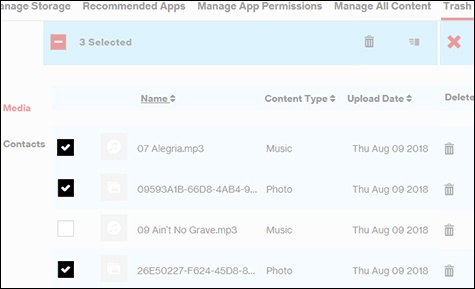
- Select the media you want to permanently delete by checking the box next to that line item.File/contact selected when a checkmark is present.To select all items, click the'# Contacts / # Media' checkboxat the top of the list.
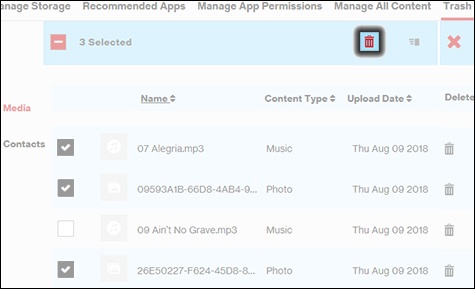
- Click thePermanent Delete icon.File selected when a checkmark is present.To delete all files: click theEmpty trash icon
(far-right trash can) then click
Empty Trashand clickOKto confirm. - ClickOKto confirm.
- ClickOK.