Software Upgrade Assistant (Kyocera) - Software Update
Here's how to upgrade the software on your Kyocera device if software update failed.
This helps you update the software on your Kyocera device using your computer/PC.
Warnings:
- The software upgrade process may take up to 30 minutes (depends on Internet speed).
- Don't disconnect the device from the computer or power off the device until the update completes.
- The wireless device automatically restarts once the update completes.
- You won't be able to use your wireless device during the upgrade process.
- The most recent software version becomes available on the SUA/SRA tool within a week of a new software update. During this time, the SUA/SRA is unavailable for usage.
- Ensure the Software Upgrade Assistant (SUA) software is installed. Refer to Initial Setup - Software Upgrade Assistant for assistance.
- Ensure the wireless device is powered on and unlocked (if device lock is enabled), then connect it to a compatible computer using the supplied USB cable.
- From the taskbar (lower-right), right-click theSoftware Upgrade Assistant tray icon
(when the SUA does not launch automatically).
- From the Assistant Tools column (on the left), clickUpgrade Assistant.
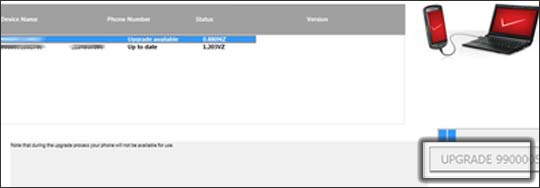
- Select the appropriate device then clickUPGRADE(on the right).'Upgrade available' displays if a software update is available and 'Up to date' displays if device software is current.A progress bar shows status of upgrade.If the update fails to install, please refer to the Software Repair Assistant for further assistance.
- Once software upgrade is complete, 'Upgrade Complete' displays above the status bar.
- ClickClose(lower-right) to exit the Software Upgrade Assistant.