How do I set Content Filters?
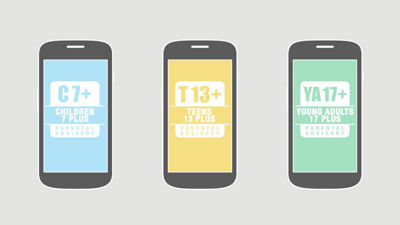
With Content Filters, you can manage the type of content that can be accessed on each device on your plan through My Verizon.
To set your Content Filter preferences, go to vzw.com/contentfilters, select Add Now and sign in to your My Verizon account. Or if you're already signed in, you can type "Content Filters" into the search box at the top of the page and hit Enter. Then click on Content Filters - My Verizon from the search results. You'll then see an overview of what type of content filters can be filtered and how. To get a more detailed description of each content rating filter, hover over the question mark icon to the right of each content filter level. Each line on your service is displayed to show the filters already in place. All devices come with no content filter by default. When you're ready to change the content filters, click the Edit Filters link. If your device is capable of content filters, you'll be able to select which type of filter you want on each line. If your device is not capable, you'll see a message stating that content filters are not available.
If your device is capable, click the radio button under the column of the desired filter for any line of your choosing. When you have each line set to the filters you choose, scroll down and read and accept the terms and conditions by clicking the box in the lower left-hand corner. Then click the Submit button. Depending on the number of edits you're making, you might receive a popup window that asks you to confirm the changes you've requested. If everything looks good click Submit the changes and you'll then receive a confirmation message. It's that easy to set Content Filters through My Verizon!