Transfer Files - Macintosh - Android File Transfer
Here's how to transfer / move / upload music, pictures and videos between your Android device and a Mac computer.
- Android™ File Transfer is an app for Macintosh computers (running Mac OS X 10.5 or later) used to view and transfer files between a Macintosh and an Android device (running Android 3.0 or later).
- For assistance downloading and installing the Android File Transfer app, refer to Android Support Article: Android File Transfer.
- For additional information on the Android File Transfer app, refer to to Google Mobile Support Article: Connecting to a Macintosh computer via USB.
Transfer Files from a Macintosh to an Android Device
- From the Macintosh desktop navigate .If using Android File Transfer for the first time, double-click it to open it. After starting Android File Transfer once, it opens automatically whenever the device is connected to the computer.
- Connect the device to the computer with the USB cable.
- From the Home screen of your Android device, swipe down on theStatus bar(at the top of the display).
- Tap theUSB icon
.
- SelectFile Transferthen tap 'Just Once' or 'OK'.Selected when a blue indicator is present.
- If prompted, selectGet Started.
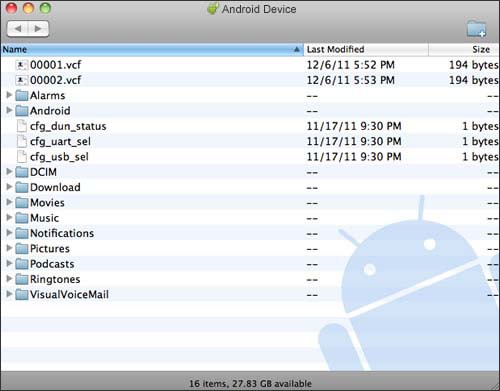
- The Android File Transfer window opens, displaying the contents of the device.
- One or more files can be dragged from the computer to a folder within the Android File Transfer window.File sizes can be up to 4GB.
Transfer Files from an Android Device to a Macintosh
- From the Macintosh desktop navigate .If using Android File Transfer for the first time, double-click it to open it. After starting Android File Transfer once, it opens automatically whenever the device is connected to the computer.
- Connect the device to the computer with the USB cable.
- From the Home screen of your Android device, swipe down on theStatus bar(at the top of the display).
- Tap theUSB icon
- SelectFile Transferthen tap 'Just Once' or 'OK'.Selected when a blue indicator is present.
- If prompted, selectGet Started.
- The Android File Transfer window opens, displaying the contents of the device.
- One or more files can be dragged from the Android File Transfer window to the computer.
Create a New Folder on the Android Device
- From the Macintosh desktop navigate .If using Android File Transfer for the first time, double-click it to open it. After starting Android File Transfer once, it opens automatically whenever the device is connected to the computer.
- Connect the device to the computer with the USB cable.
- From the Home screen of your Android device, swipe down on theStatus bar(at the top of the display).
- Tap theUSB icon
- SelectFile Transferthen tap 'Just Once' or 'OK'.Selected when a blue indicator is present.
- If prompted, selectGet Started.
- The Android File Transfer window opens, displaying the contents of the device.
- From the Android File Transfer window, click theNew Folder icon.Located in the top-right corner of the window.
- Enter the desired name for the folder then clickEnter.
Delete Files or Folders from the Android Device
- From the Macintosh desktop navigate .If using Android File Transfer for the first time, double-click it to open it. After starting Android File Transfer once, it opens automatically whenever the device is connected to the computer.
- Connect the device to the computer with the USB cable.
- From the Home screen of your Android device, swipe down on theStatus bar(at the top of the display).
- Tap theUSB icon
- SelectFile Transferthen tap 'Just Once' or 'OK'.Selected when a blue indicator is present.
- If prompted, selectGet Started.
- The Android File Transfer window opens, displaying the contents of the device.
- Select one or more files or folders from the Android File Transfer window.
- From the top menu, navigate .
- TapDeleteto confirm.