Apple iPad - Turn Screen Portrait Orientation Lock On / Off
Here's how to fix the screen / display on your iPad if it doesn't flip or rotate.
This helps if you can't get the screen / display on your device to flip or rotate.
Turn Portrait Orientation Lock On
If Portrait Orientation Lock is turned on, the screen on your Apple® iPad® won't rotate.
- Access the Control Center by touching the top-right corner of any screen then dragging downward.
- Tap thePortrait Orientation icon
to turn on.
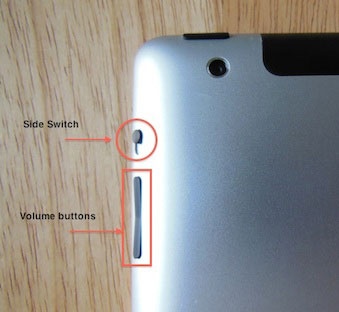
When the icon is highlighted in red, the Portrait Orientation Lock is turned on.If you don't see the Portrait Orientation icon, use the iPad's Side Switch.
Turn Portrait Orientation Lock Off
Portrait Orientation Lock is turned on when the 'Portrait Orientation Lock icon' is highlighted in red.
is highlighted in red.- Access the Control Center by touching the top-right corner of any screen then dragging downward.
- Tap thePortrait Orientation Lock iconIf you don't see the Portrait Orientation icon, use the iPad's Side Switch.
Use Side Switch to Control Portrait Orientation Lock
- Allows you to control Portrait Orientation Lock with the Side Switch.
- The steps below apply to the following models:
- iPad Air
- iPad Mini / iPad Mini 2 / iPad Mini 3
- iPad (3rd and 4th generation)
- To identify your iPad model, view this info.
- From a Home screen, tapSettings icon
.
- TapGeneral.
- From the 'USE SIDE SWITCH TO' section, tapLock Rotation.